Create a Task
LadVen OS, the operating system for business, helps you create tasks when work needs a concrete result, an assignee, and transparent progress. A good task removes unnecessary clarification: the assignee understands what to do, why it matters, where to find materials, and how the result will be checked.

Good setup turns an agreement into a checkable task: result, assignee, deadline, context, materials, and review criteria.
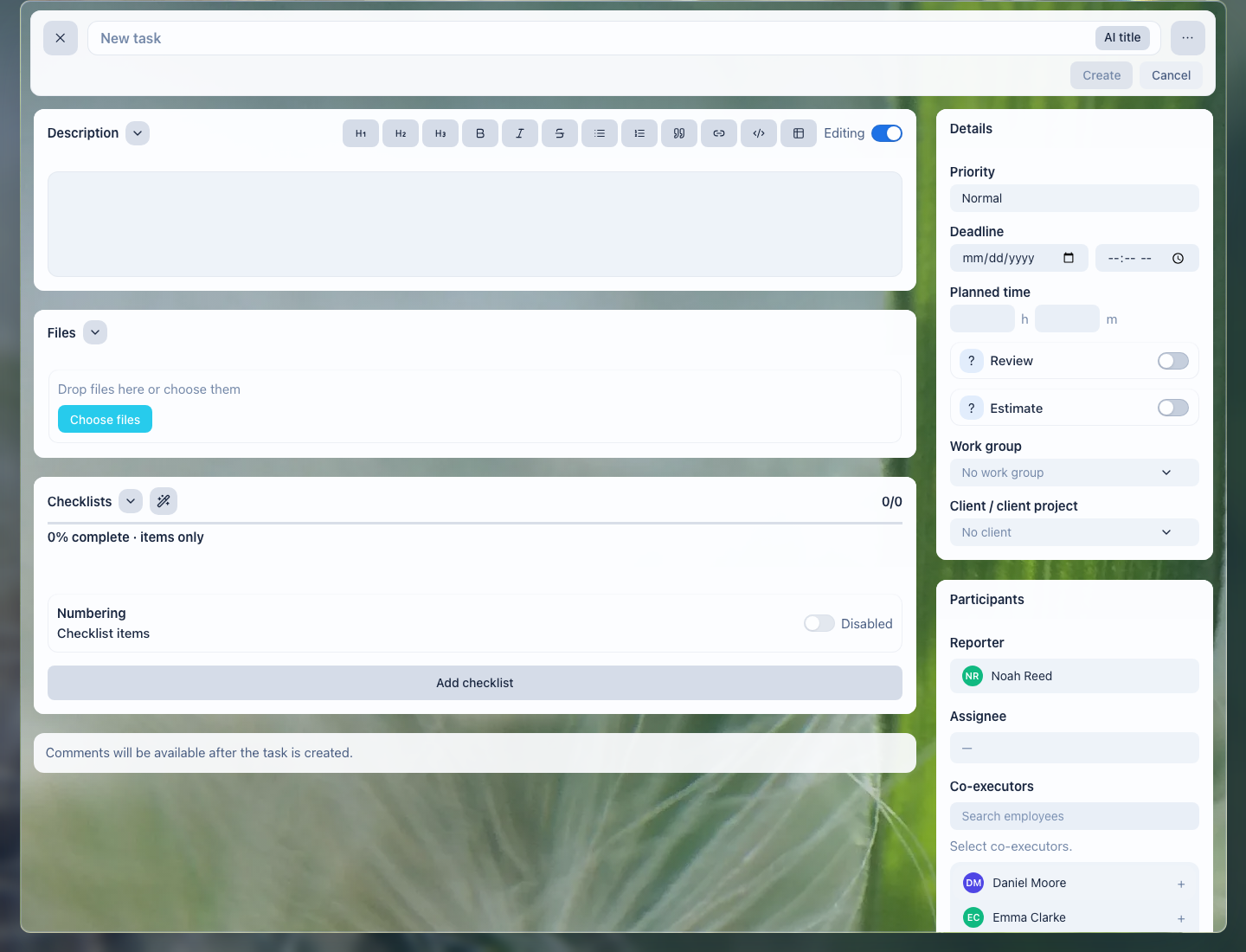
The task creation form gathers the description, files, checklist, deadlines, and participants in one working context.
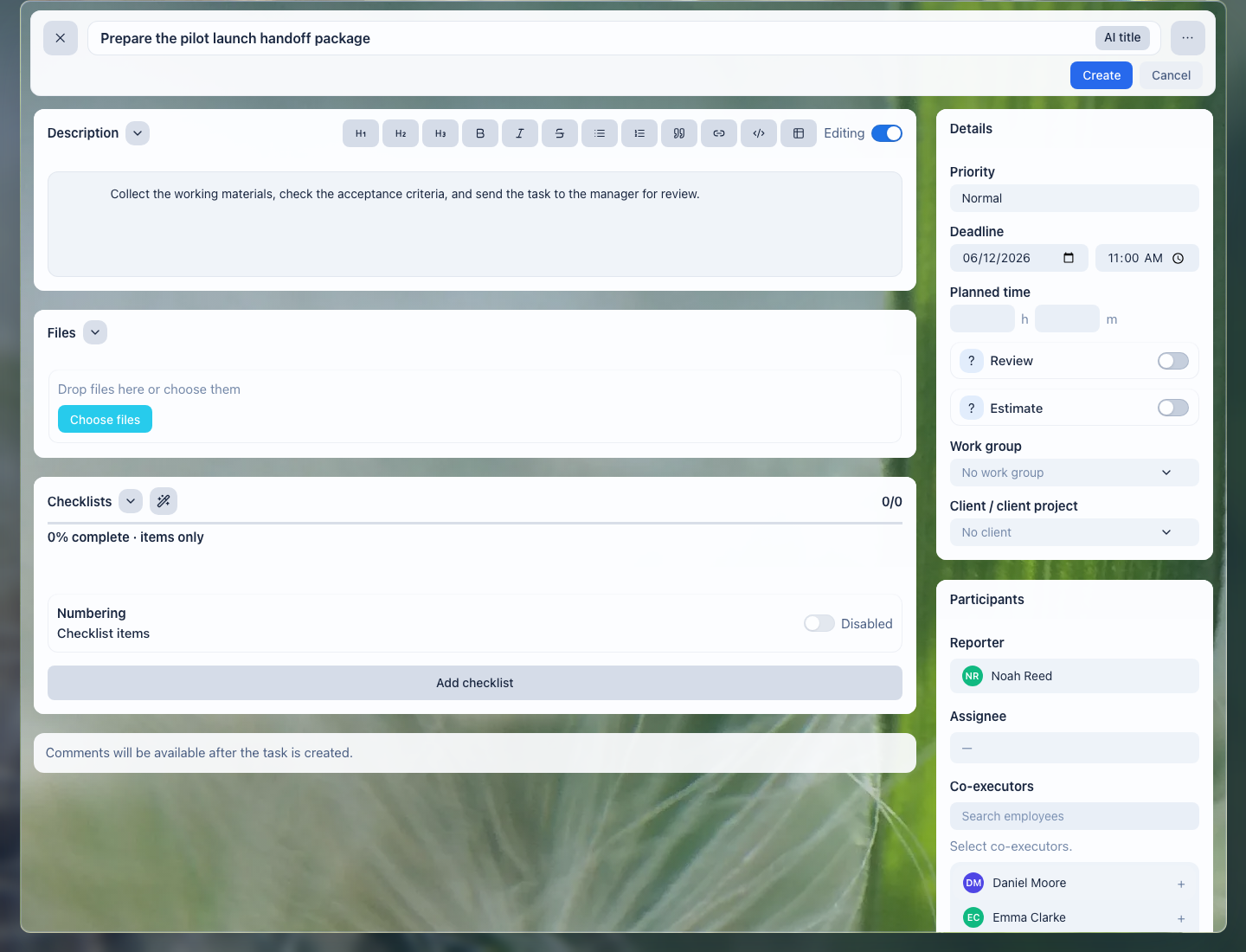
Details capture the deadline, priority, planned time, and whether the result needs review right away.
When to Create a Task
A task is suitable when work must be assigned, discussed, and brought to a result. For a short question without a result, use a comment or chat. For a repeatable process, use a task with a checklist or a template.
Quick choice:
| Situation | What to use | Why |
|---|---|---|
| A new checkable result needs an owner and deadline | Separate task | The result gets an assignee, acceptance, history, and manager visibility. |
| You need to clarify work that already exists | Comment in the existing task | The context stays next to the decision, and the task list does not fill with duplicates. |
| A small step appeared inside the same result | Checklist item | The step is visible to the assignee without turning one piece of work into many small tasks. |
| A separate result appeared but is tied to the current work | Related or child task | The new work gets its own assignee and deadline while keeping the link to the original task. |
| The same work repeats by one rule | Template or recurring task | The team does not rebuild the same process manually every time. |
Create a separate task when there is:
- an expected result that can be checked;
- one main assignee;
- a deadline or a clear reason why the deadline is not set yet;
- context: a client, project, document, file, or link;
- participants who need to see the execution progress.
Before Creating
Define the result, not the action. The title should answer the question: "what should be ready?"
Good:
- "Prepare a commercial proposal for the client";
- "Agree on the pilot launch date";
- "Review the contract and mark edits".
Poor:
- "Client";
- "Look at it";
- "Important".
Creation Drafts
If you started creating a task and closed the form or returned to the list, LadVen OS keeps a browser draft. When you open task creation again in the same context, the portal does not substitute the draft silently: it asks whether to continue the saved draft or start a new task. This way you decide for yourself whether to return to the earlier setup or avoid carrying old data into a new task. Continuing a draft saves you from re-entering the title, description, details, and checklist.
A draft does not replace the final check before creation. The browser cannot restore local files from a previous session: if the draft shelf or file block shows a warning, select those files again and check that they are really needed for starting or accepting the task.
Before saving a restored draft, review the assignee, deadline, client or project context, checklist, and files once more. If the agreement changed during the pause, update the task before creation instead of fixing it immediately after launch.
How to Fill In a Task
Required Minimum
Before saving, four things must be clear in the task: what should be produced, who is responsible for the result, when the result is needed, and by which signs it will be accepted.
Check the required minimum:
| What to fill in | Why it is needed | What is not enough |
|---|---|---|
| Title | So the task can be recognized quickly in lists and notifications. | A general topic without a result: "Client", "Contract", "Important". |
| Result description | So the assignee understands the context, expected outcome, and acceptance criteria. | A single link, forwarded text without explanation, or "need to look". |
| Assignee | So the result has one owner. | Several actual owners or participants without roles. |
| Deadline or reason for no deadline | So the team can plan work and not lose urgent tasks. | A "today" deadline without a reason, or an empty deadline without explanation. |
Files, checklist, project, client, workgroup, tags, planned time, and observers are not needed in every task. Add them when they help execute or check the work.
Assemble the task by blocks
The creation form in LadVen OS gathers the management agreement in one place. Fill blocks by working meaning, not by the habit of filling every available field.
| Block | What to decide before creating | When it is required |
|---|---|---|
| Description | What result must be ready and how it will be accepted. | Always, if the task is more complex than one obvious action. |
| Details | Deadline, priority, planned time, preliminary estimate, and result review. | When the date affects planning, the amount of work must be estimated, or the result must pass acceptance. |
| Participants | Who owns the result, who helps, and who must see progress. | One assignee is always needed; other roles are added when useful. |
| Context | Project, client, document, workgroup, or tag that will help find the task later. | When the task is tied to a client commitment, project, contract, or repeatable process. |
| Files | Which materials are needed to start and which files will prove the result. | When work cannot start, be checked, or be reconstructed without a file. |
| Checklist | Which steps can be marked done and what evidence is needed by stage. | When the task has several verifiable actions or several people participate. |
If a block does not help execute, find, or accept the task, do not fill it formally. Extra structure creates the same noise as missing context.
Minimum, working, and process-level tasks
Tasks do not all need the same depth. It is useful to distinguish three levels before saving.

The diagram helps choose enough setup depth: a short assignment, a working task, or a process task with verifiable stages.
| Level | When it fits | What to add |
|---|---|---|
| Minimum task | A quick assignment with a clear result. | Title, assignee, deadline, and a short acceptance criterion. |
| Working task | A normal department, client, or project task. | Result description, context, files, participants by role, and an acceptance comment. |
| Process task | Repeatable or cross-department work. | Checklist by stage, template, recurrence, control files, observers, and review rules. |
Managers should be able to see which level the task has. If process work is created as a minimum assignment, the team will almost certainly clarify steps in comments and move deadlines.
Title
The title should be short and specific. Do not put all context into it: keep the result in the title and move details into the description.
Good format:
Verb + result + object
Examples:
- "Prepare the presentation for the meeting";
- "Update the contract terms";
- "Check the webinar participant list".
Result Description
The description answers three questions: why the work is needed, what exactly to do, and how to understand that the task is ready. For a manager, it is a way to pass expectations without a separate call. For an assignee, it is the source of the criteria by which the work will be accepted or returned for revision.
Convenient structure:
Context:
Why the task appeared and what it relates to.

What needs to be done:
1. First step.
2. Second step.
3. What to provide as the result.

Acceptance criteria:
- the result can be opened or checked;
- important edits are included;
- participants received the final version.
If the task contains a link, add an explanation next to it. A single link without context forces the assignee to find out again what exactly needs to be done.
A good result description can be checked without guessing:
- what should be created, fixed, agreed, or sent;
- where the source material is located;
- who accepts the result;
- which file, link, comment, or change confirms readiness;
- what is outside the task if there is a risk of expanding the work beyond the agreement.
Poor descriptions leave interpretation to the assignee: "make it normal", "figure it out", "look at the client", "prepare everything for the meeting". Replace them with a visible outcome: a document, list, decision, sent email, approved version, or completed check.
Assignee
A task should have one main assignee. If several people do the work, assign one owner of the result and add the others as co-executors or observers.
The assignee is responsible for the final result, not for every separate step. If different people have independent results, create several related tasks.
Deadline
The deadline should help planning, not create false urgency. Set the date when the result is really needed.
Use a "today" deadline only when the work truly blocks the current day. If the date is unknown, write this in the description and agree who will clarify the deadline.
If the task depends on an external event, state it in the description: for example, "deadline will be clarified after the client replies" or "needed before the May 24 meeting". Then participants understand why the date was chosen and when to revisit it.
Priority and Planned Time
Priority shows how to compare the task with other work. High priority is not for tasks that are important in meaning, but for tasks that must be handled earlier than the normal flow.
Planned time helps agree on the scope of work in advance. Set it when the task affects team workload, requires an estimate, or when comparing plan and actual time later matters.
Do not use high priority and a short deadline as a replacement for a proper description. If the task is urgent, explain the reason in the description.
Preliminary Estimate and Review
If work requires a preliminary estimate, record this before execution starts. Then the assignee first clarifies the scope instead of doing the task with wrong expectations.
When moving the task into work requires a preliminary estimate, LadVen OS shows a yellow reminder banner above the task content with a Set estimate button. This is a visual gate: it does not let you move the task to the next status until the scope is estimated. The Set estimate button scrolls the form to the "Planned scope" field in the "Details" block and highlights it, so you immediately see where to enter the value.
Use result review for tasks where it is important not just to perform an action, but to accept the outcome: a document, proposal, contract, list, client response, or prepared material.
Participants
Add participants by role:
- the task requester defines the result and accepts the work;
- the assignee leads the task to the result;
- co-executors perform parts of the work;
- observers follow the context but are not responsible for execution.
Do not add observers "just in case". Extra notifications reduce attention to important tasks.
Participant search shows only active internal employees who can be assigned tasks. External (guest, extranet) and disabled accounts will not appear in the list as an assignee, a co-executor, or an observer. If the person you need is missing, check that they are an active employee with the permission to work with tasks.
If a manager needs only the result, they do not necessarily need to be an observer from the start. You can leave the manager outside the task and mention them in a comment when the result is ready. An observer is needed when a person must see progress, risks, and decisions while the work is being done.
Usually the task requester is the person who creates the task. In the interface this role may be labeled Reporter. A department head can, at creation, set one of their subordinates as the requester — for example, to assign a task on behalf of the employee who runs that area. In that case the Reporter field offers not only you, but also the employees of your departments, and the task is tied to the workgroup (project) of the chosen requester, not to yours.
This works only "down the structure": you can set yourself or an employee of your department as the requester, but not a colleague at the same level and not someone above you. An administrator and a user with the task management right set the requester without this restriction. If you lack the rights to assign on behalf of the chosen employee or to use their project, LadVen OS shows a clear reason for the refusal instead of silently resetting your choice. You can change the requester this way when creating the task; for an existing task, changing the requester still requires management rights.
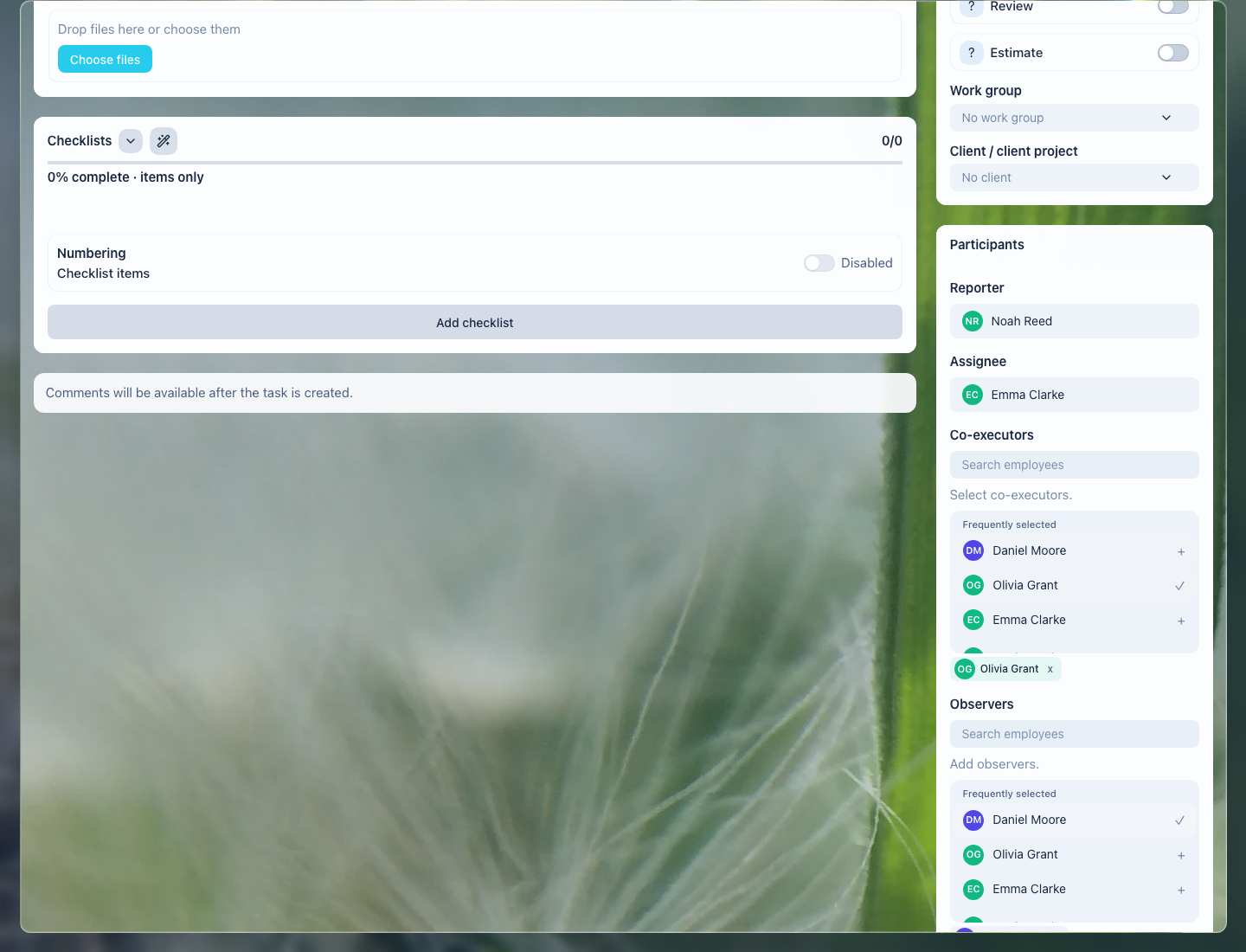
Requester, assignee, co-executors, and observers are separated by role so responsibility for the result stays clear.
Files, CRM, and Documents
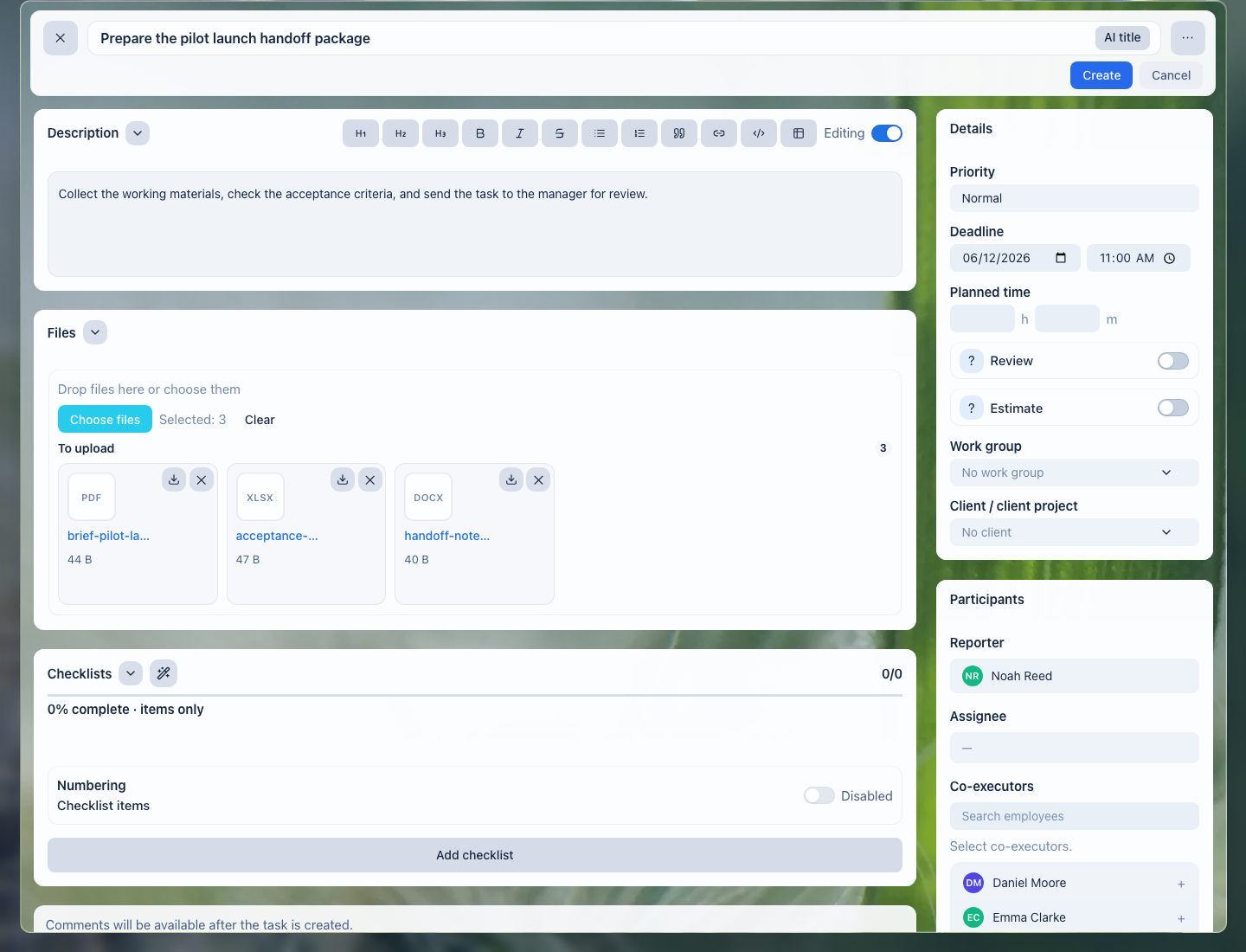
Files at creation show the materials that must travel with the task before the assignee starts work.
Attach materials without which the task cannot be done: a contract, requirements document, client file, spreadsheet, document link, or CRM record. An attachment should help the assignee start without extra searches.
A useful attachment:
- relates to this exact task, not to a general discussion;
- has a clear name or explanation in the description;
- is the current version, not an old draft;
- is available to the participants who must work with it;
- does not contain unnecessary private or commercial data.
If a file is only reference material, explain this in the description. If a file must be the result of the work, add it to the acceptance criteria.
A selected file is not yet proof that the material entered the task. Before sending the task into work, check that required files are visible in the files block, can be opened or downloaded by the assignee, co-executors, and reviewer, and that the final material is distinguishable from drafts by name or explanation.
Examples:
| Situation | What to attach | What to write in the description |
|---|---|---|
| Need to prepare a proposal | client requirements document, proposal template | which template to use and what to fill in |
| Need to review a contract | current contract version | which sections to check and where to mark edits |
| Need to update a list | spreadsheet or document with the list | which columns to update and how to know the list is ready |
Do not attach a file only because it "might be useful". Extra materials make a task harder in the same way extra observers make notifications harder.
Project, Client, and Workgroup
Connect the task to a project, client, or client project if it would be difficult to find the context later without that relation. This is especially important for sales, implementation, document, and repeated-request tasks.
A workgroup is useful when a task belongs to a stable team or area. Do not choose a group only for sorting: if the relation does not help participants understand the context, it is better to leave the task without it.
Tags
Tags are needed for quick slices and repeatable processes: for example, contract, pilot, approval, urgent-client. A tag should help find or group tasks later.
Do not duplicate status, assignee, or project with tags. Otherwise the tag list quickly stops being useful.
Checklist
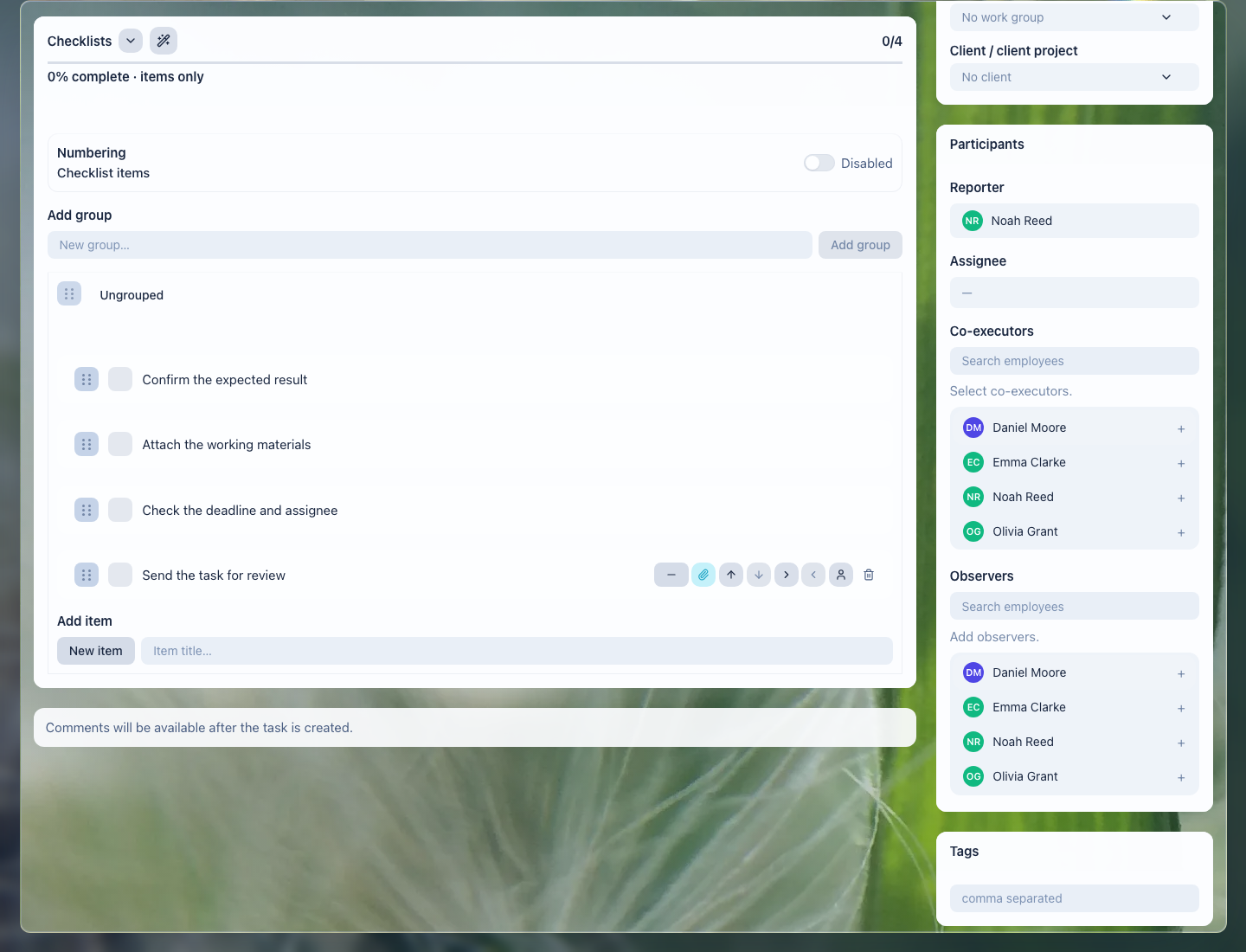
A checklist at creation shows the steps and acceptance order before the task even reaches the assignee.
Add a checklist if the task consists of several verifiable steps. A good checklist item describes an action that can be marked as done.
A checklist is especially useful when:
- work repeats by process;
- the result depends on several required checks;
- several participants perform different parts of the work;
- the requester needs to understand progress quickly without reading the whole discussion.
Write items as actions:
Good:
- "Check the client's legal details";
- "Fill in the launch terms in the template";
- "Send the final version for approval".
Poor:
- "Legal details";
- "Commercial";
- "Figure out the contract".
If an item requires separate discussion, do not hide it in the checklist. Move the explanation into the task description or ask a question in comments.
For a complex process, use nesting carefully: the parent item should name a stage, and nested items should be concrete actions inside that stage. If nesting makes the list harder to read, use several regular items or separate related tasks.
Template at creation
If the work repeats, start from a template instead of an empty form. A template keeps the structure: standard description, checklist, participant roles, files, tags, and control rules.
Before saving a task from a template, check that it fits the current situation:
- remove checklist items that do not apply;
- replace standard wording with the concrete result;
- check the assignee and observers;
- update deadline, project, client, and documents;
- attach current files, not old versions;
- add a comment or clarification if this task differs from the usual scenario.
A template speeds up task creation, but it does not remove responsibility for meaning. If a template creates extra roles, old files, or outdated items, the assignee receives noise instead of a ready process.
Files and checklist together
Files and checklist work best as a pair: the checklist shows what must be done, and files prove what the work was based on and how each important step ended.
Simple order:
- Attach shared source materials to the task: requirements document, contract, table, template, or document link.
- Add a verifiable action for each checklist stage.
- Attach proof for a specific step to the checklist item, not only to the general file list.
- Add the final result to task files and mention it in the acceptance criteria.
- If a file replaces an older version, leave a short explanation in a comment.
This lets the reviewer see more than a completion percentage: which materials were used, what changed, and where the final result is stored.
How to Create a Task in LadVen OS
- Open the tasks section in LadVen OS.
- Click the action to create a new task.
- Fill in the title, description, assignee, and deadline.
- Specify priority, planned time, or preliminary estimate if they affect execution.
- Add a project, client, workgroup, tags, or document if the task is connected to them.
- Attach useful files: only current materials needed for execution or result review.
- Add a checklist if the work consists of several steps or checks.
- Check participants, file access, deadline, and acceptance criteria.
- Save the task.
Example of a Good Task
Title:
Prepare a commercial proposal for the client

Description:
Context:
The client requested a proposal for the pilot launch. The final version must be sent before the meeting.

What needs to be done:
1. Check the inputs from the requirements document.
2. Fill in the commercial proposal template.
3. Add launch dates and terms.
4. Send the version to the requester for approval.

Acceptance criteria:
- the document is filled in without draft comments;
- launch dates and terms are specified;
- the final version is attached to the task.

Checklist:
- Check the inputs from the requirements document.
- Fill in the proposal template.
- Add dates and terms.
- Attach the final version.
- Send for approval.

Files:
- client requirements document;
- commercial proposal template;
- current launch terms table.
What to Check Before Saving
Mini-checklist before saving:
- The title describes the result, not a general topic.
- The description contains context, steps, and acceptance criteria.
- There is one assignee and they understand their role.
- The deadline is set or the reason for no deadline is clear from the description.
- Priority, planned time, and preliminary estimate are set only where they are really needed.
- Files, links, and CRM records are truly needed for the work and are available to participants.
- Project, client, workgroup, and tags help find the context, not just fill the form.
- Observers are added deliberately.
- The checklist consists of verifiable actions, not general topics.
If any item is doubtful, clarify the task before saving. After launch, poor assignment quickly turns into extra comments, deadline shifts, and disputes about what was supposed to count as a ready result.
After Creating
Check that the task appears in the list and participants have access to the context. If clarification is needed, ask in the task comments, not in a separate private message: the decision will remain inside the working context.
If the task was created by mistake, fix the title, participants, or deadline immediately. The sooner the task is put in order, the fewer unnecessary notifications and clarifications participants receive.
Common Mistakes
| Mistake | Why it gets in the way | How to fix it |
|---|---|---|
| The task is assigned without a result. | The assignee does not understand what exactly must be submitted for acceptance. | Define the outcome: a file, decision, list, approval, sent message, or completed check. |
| The title is too general. | The task is hard to find in the list and distinguish from similar assignments. | Start the title with an action and result: "Prepare", "Check", "Agree", "Update". |
| The description contains only a link. | Participants have to find out again what to open and what to do with the material. | Add a short explanation and acceptance criterion next to the link. |
| Responsibility is effectively split between several people. | Nobody owns the final result. | Assign one assignee and add the others as co-executors with clear parts of the work. |
| Observers were added "for visibility". | People receive extra notifications and react worse to important tasks. | Keep only those who need to see execution progress; mention the rest when the result is ready. |
| The deadline is "today" without a reason. | Urgency loses meaning and the day plan breaks without benefit. | Set the real date or explain what blocks work today. |
| High priority replaces an explanation of urgency. | The team sees the signal but does not understand the business reason. | Use priority only for tasks that must go before the normal flow, and add the reason to the description. |
| Files are attached without checking version and access. | The assignee works with outdated material or cannot open it. | Before saving, check that the file is current, clearly named, and available to participants. |
| No client, project, or document relation is selected. | The context is later lost in task lists and discussions. | Connect the task to the working object if it helps find history and materials. |
| Tags duplicate status or assignee. | Tag slices stop being helpful. | Use tags only for processes, topics, and repeatable categories. |
| The checklist consists of general topics. | Progress looks formal and does not show readiness. | Rewrite items as short verifiable actions. |
How to Recognize a Well-Created Task
After saving, open the card and read it as the assignee and the manager would. A well-created task is understandable without extra messages:
- the title immediately shows the expected result;
- one assignee owns the outcome, while co-executors and observers do not blur responsibility;
- deadline, priority, planned time, and preliminary estimate are explainable and do not look accidental;
- the description gives context, steps, and acceptance criteria;
- files, links, client, project, and document relations genuinely help do the work;
- the checklist breaks the result into verifiable actions;
- a task created from a template is adapted to the current case instead of being saved mechanically;
- required fields and warnings are corrected before the task starts.
If the card can be handed to the assignee and the manager can understand how to accept the result, the task is manageable. If people still need a separate message to understand it, return to the title, description, participants, files, or checklist and clarify them inside the task.