Task List, Filters, and Views
LadVen OS, the operating system for business, helps a manager keep department work under control through the tasks section, and helps an employee quickly understand what to do today, which deadlines are at risk, and where new changes have appeared. On one screen, you can find the tasks you need, filter them by conditions, choose a convenient view, save repeatable slices, prepare an export, and change several tasks at once.

The main idea is simple:
- the list answers the question "what is in the work";
- filters clarify which tasks should be visible;
- views show tasks from different angles: table, Kanban, personal board, schedule;
- bulk actions help quickly restore order when the same decision applies to several tasks.
The tasks section should not be just a large registry. In LadVen OS, it works as a control panel for operational work: the manager sees risks, the employee sees a personal queue, and the business owner understands where the process needs attention.
What questions the tasks section answers
For a manager, the tasks section helps:
- see overdue work across the department;
- understand who is overloaded and who has free capacity;
- find tasks without an assignee;
- check priority and client tasks;
- prepare a slice for a planning meeting, report, or client meeting;
- quickly reassign tasks if plans have changed.
For an employee, the tasks section helps:
- assemble a personal work list for the day or week;
- check tasks where they are the assignee, co-executor, or observer;
- see new comments and changes;
- arrange tasks by deadlines and priorities;
- return to a task with active time tracking;
- avoid losing tasks without a deadline, estimate, or clarification.
How to read the list top bar
The list top bar is the working area for quickly narrowing tasks. It helps you avoid opening every task one by one and first build the management context you actually need.
Above the list itself, the portal header shows a breadcrumb trail in the form "Section / Subsection" - for example, "Tasks / List". It shows where you are and helps you go one level up with a single click.
This block usually contains:
- search - to find a task by number, title, client, project, or text fragment;
- quick filters - to move to frequent work questions without complex setup;
- advanced filters - to precisely set status, deadline, participants, project, client, and other conditions;
- saved slices - to return to a recurring set of conditions;
- view switcher - to see the same tasks as a list, Kanban board, or schedule;
- refresh - to get the latest changes before making a decision;
- export - to prepare a report or external reconciliation;
- task creation - to immediately assign a new request from the current context.
Keep the workflow in this order: first choose the work question, then configure filters and the view, then make decisions. If you start with bulk actions or export before checking the slice, it is easy to change or export extra tasks.
For a manager, the top bar answers the question "which part of work am I controlling now?" For an employee, it answers "which tasks belong to my nearest queue?" For a business owner, it answers "which process or client flow needs attention?"
Working slices for management
To make the tasks section useful every day, create several stable slices. They should answer repeatable management questions, not simply save a random set of filters.
| Slice | Who uses it | What question it answers |
|---|---|---|
| My active tasks for today | employee | what needs to be done next |
| Unread with my participation | employee and manager | where new questions or decisions have appeared |
| Overdue by department | manager | which tasks already require intervention |
| Without assignee | manager | where work cannot move because there is no owner |
| In acceptance | task requester or manager | which results need to be checked |
| High-priority client tasks | manager and process owner | which client commitments must not be lost |
| Tasks without deadline | manager | what has fallen out of planning |
| Weekly plan by people | manager | who is overloaded and who has capacity |
Do not try to replace live management work with these slices. A slice shows where to look. The decision is still made after opening the task card and checking the context.
Task views
A view defines how to look at the found tasks. The same set of tasks can be opened as a list, Kanban board, or schedule. The choice depends on the question that needs to be answered.
| Work question | Best view | Why this view |
|---|---|---|
| Which tasks are in the slice and which fields are filled in? | List | Columns, sorting, grouping, export, and bulk actions are visible. |
| Where is the execution flow stuck? | Kanban by status | Status buildup and acceptance bottlenecks are visible. |
| How does an employee organize their personal queue? | Personal Kanban | Personal work stages are visible, while the task status remains the management source of truth. |
| Which deadlines are clustering this week? | Weekly schedule | Task distribution by day and future overload are visible. |
| Who is overloaded and who can take part of the work? | People schedule | Workload by assignee is visible, not just a list of deadlines. |
Do not switch views only for visual comfort before the work question is clear. First decide what you need to solve: find a risk, prepare a report, redistribute load, review acceptance, or plan personal work. Then choose the view.
List
The list is suitable for precise control: it is convenient for comparing tasks by fields, sorting, configuring columns, selecting several tasks, and preparing an export.
Use the list when you need to:
- find a task by number, title, client, or project;
- check deadlines, statuses, priorities, and assignees;
- prepare a working list for the team;
- assemble a reporting slice;
- change the same field for several tasks at once.
For daily work, keep only the needed columns in the list: title, assignee, status, deadline, priority, and next planned action. For a report, you can add project, requester, planned and spent time, creation date, and update date.
The list hints at task state with color: statuses are color-coded so you can tell a new, in-progress, in-review, or completed task apart at a glance without reading closely. Overdue tasks are marked with a red stripe along the left edge of the row and a soft red background - so tasks that require intervention are visible immediately, even before you sort by deadline.
Kanban
Kanban shows tasks by status. It is useful when it is important to understand the movement of work: what has not started, what is in progress, what is waiting for review, and what is already closed.
Kanban helps:
- see which status has accumulated the most tasks;
- quickly discuss the work flow at a team meeting;
- open a task card and clarify context;
- notice tasks that have not moved for a long time.
For precise column setup, exporting a table report, and bulk changes, the list is more convenient.
For a manager, Kanban is useful as a movement map, not as the place for the final decision. If many tasks accumulate in the "In review" column, the problem may not be with performers but with overloaded acceptance. If tasks stay at the beginning of the flow for too long, the task statement may be incomplete or there may be no clear assignee. If many tasks return backward, review readiness criteria, files, and comments.
Read Kanban from left to right as a flow of commitments, not as a set of separate cards:
- on the left, you see what has not yet been accepted into work or has no clear next step;
- in the middle, you see the real execution load;
- closer to acceptance, you see where the result is prepared but not yet confirmed by the requester or manager;
- on the right, you see completed work that can be used in a report or client reconciliation.
A bottleneck is the column where tasks accumulate faster than they move forward. For a manager, the reason matters as much as the count. If many tasks are in progress, check performer load and deadlines. If many tasks are in acceptance, check who must accept the result and whether cards contain enough readiness criteria, files, and comments. If many tasks return to rework, the issue may be in the task statement, result standard, or acceptance process, not in one specific task.
Review acceptance buildup separately. Do not move such tasks to completed in bulk only because they stand in one column. First open several cards from that column and separate them into groups:
- the result is ready and checked - close the task or record acceptance;
- the result exists, but a file, comment, or checklist part is missing - return it to rework with a concrete note;
- the result is no longer needed in the previous form - close it with an explanation or create a related task for the new result;
- acceptance is delayed by the manager or requester - assign a review time and do not leave the task without a decision.
For a business owner, this column shows not "how many tasks are almost ready", but how many results have not yet become accepted commitments. If acceptance regularly becomes the bottleneck, adjust the review rule: who accepts, by what deadline, by which criteria, and what counts as a sufficient result.
Use Kanban at a planning meeting like this:
- Open a slice by department, project, or client direction.
- See which statuses have accumulated tasks.
- Compare the buildup with upcoming deadlines and people's load.
- Open several tasks from the problem column and check the reasons.
- Record decisions in task cards: comment, deadline, assignee, related task.
- After the meeting, check that the status reflects the real state of work.
Do not move tasks between statuses just to make the board look clean. The status must show the working truth: the task is new, in progress, under review, returned, closed, or stopped for a clear reason.
Personal Kanban
Personal Kanban helps an employee arrange their tasks by work stages, and helps a manager see how the person organizes their personal queue. It does not replace task status, but it helps plan execution.
Use personal Kanban when you need to:
- assemble a personal plan for the day or week;
- separate tasks "in progress" from tasks "waiting for clarification";
- prepare for a one-on-one meeting;
- understand which tasks can be moved to another work stage.
In a personal board, a user can work with several boards, rename them, create a new board, configure visible card fields, and change the order of those fields. Board columns describe the personal way of working: for example, "Today", "Waiting for clarification", "In progress", "Check before handoff". Cards can be moved between columns so the queue remains understandable.
On a personal Kanban card, the next planned action and deadline are especially important. The next planned action shows what the user intends to do next: treat the card text as a quick hint. If it is shortened, unclear, or does not match the deadline, open the card and clarify the next step, assignee, or deadline change. The deadline is color-coded by urgency: overdue tasks appear in red and bold, tasks due today or tomorrow in orange as a warning, and the rest in a neutral color.
For a manager, personal Kanban is useful during a one-on-one conversation: it shows how an employee sees their own queue. But it must not be used as the final decision about task status. If a task is in a personal "Done" column, that does not yet mean accepted work: open the task card and check the system status, result, files, checklist, and comments.
A good personal board answers three questions:
- what the employee is doing now;
- what is waiting for an external decision or clarification;
- what is ready to be sent for review.
How to read personal Kanban:
| Situation | What it means | What to do |
|---|---|---|
| Many tasks are in personal work | the employee has taken on too broad a front | choose the nearest 1-2 results and move the rest into the plan |
| Many tasks are waiting for clarification | the task statement or context is incomplete | ask questions in the task cards and record who must answer |
| Urgent tasks are not in the nearest stage | the personal plan does not match deadlines | compare the board with the weekly schedule and deadlines |
| A manager sees constant overload | the issue may be distribution, not employee discipline | check the people schedule and reassign part of the work |
For a one-on-one meeting, open the employee's personal board, then check disputed tasks in their cards. A good meeting result is not moved cards, but a clear next step, deadline, and result owner for every risky task.
A bad personal board copies system statuses one-to-one or becomes a storage area for tasks without a deadline or next step. If it gains dozens of columns, return to a simple list and saved slices.
If a task has several participants, the main assignee remains the owner of the result. Co-executors and observers help with context, but they should not blur control.
Weekly schedule
The weekly schedule shows tasks by day. It helps assess how deadlines are distributed over time and notice overload in advance.

The flow helps read the schedule as an early management tool: where deadlines cluster, who is overloaded, and what can be moved before work becomes overdue.
In the weekly schedule, check:
- tasks for the current week;
- overdue tasks that need to be returned to the plan;
- days with a high concentration of deadlines;
- tasks without an assignee;
- tasks without time or preliminary estimate;
- tasks that need to be moved before work starts.
This view is convenient for weekly planning and daily syncs. If you need to edit many fields or prepare a report, return to the list.
People schedule
The people schedule shows work relative to performers. This is the main tool for assessing department workload and preparing redistribution.
Use it when you need to:
- understand who is overloaded in the next few days;
- see tasks without an assignee;
- compare the plan between employees;
- prepare arguments for reassignment;
- check whether urgent tasks are concentrated on one person.
The people schedule answers the question "who does the work and when". If you need to understand which client tasks need attention, it is better to use a client filter and grouping by projects or clients.
For a manager, the schedule is most useful as an early intervention tool. If one employee has urgent tasks gathered on one day and there is free capacity nearby, do not wait for actual overdue work: open the card, check the context, reassign part of the work, or change the deadline together with the result owner.
Do not use the schedule only as a nice calendar. It must answer management questions: whether there are enough people for the promised volume, whether tasks without an assignee are stuck, and whether too much urgent work has appeared for one performer.
Search
Search is needed to quickly narrow the list by text: number, title, description fragment, client, or project.
Working order:
- Enter a short query.
- Wait for the result to update.
- If there are too many tasks, add a filter by status, assignee, project, client, or deadline.
- If there are no tasks, check active filters, saved slice, and selected view.
Search does not replace filters. Search answers the question "where does this text appear", while filters answer "which tasks match the conditions".
Quick filters
Quick filters cover the most frequent work questions. They help you get to the needed slice without complex setup.
| Filter | When to use |
|---|---|
| Active | For the current queue without closed tasks. |
| Mine | To see tasks where you participate in the work. |
| With my participation | When you need to find tasks where you are not necessarily the assignee, but participate in discussion or execution. |
| Assigned | To focus on tasks with performers. |
| By department | For controlling tasks of a team or subdivision. |
| Unread | To process new comments and changes. |
| Overdue | For urgent deadline control. |
| Without assignee | To find tasks that cannot move normally without a result owner. |
| Priority | For tasks that need to be processed before the usual flow. |
| For the week | For planning the next few days and preparing a sync. |
| Require preliminary estimate | For tasks where the work volume must be agreed first. |
| All | For the full list, taking the other selected conditions into account. |
Useful combinations:
- "Overdue + department" shows what the team must urgently process.
- "Client + active + high priority" helps highlight client tasks that need attention now.
- "Without assignee + project" shows where work is stuck because there is no owner.
Filter decision matrix
A filter is useful not by itself, but as an entry point into a decision. If it is unclear what to do after opening a slice, the slice should be simplified or renamed.
| What you need to understand | Where to start | What to check in task cards | What decision to make |
|---|---|---|---|
| Why a department is going overdue | Overdue + department | deadline, last comment, assignee, blockers, files | move the deadline, remove the blocker, return for revision, or redistribute work |
| Where work has no owner | Without assignee + project/client | requester, expected result, links, checklist | assign an owner or return the task statement for clarification |
| What needs manager review | In acceptance + department/project | acceptance criteria, attachments, performer comments | close, return for revision, or request the missing result |
| Which client promises are at risk | Client + active + high priority | deadline, assignee, CRM link, latest status | increase control, change the plan, or create a related task |
| Where an employee is overloaded | Assignee + week/schedule | deadline concentration, priorities, planned time | reassign part of the work or agree on a new deadline |
Before a bulk action on such a slice, ask the control question: "Do all selected tasks need the same management decision?" If not, split the list into narrower groups first.
Advanced filters
Advanced filters are needed when quick conditions are not enough. They let you specify status, priority, assignee, requester, project, client, deadline, creation date, or update date more precisely.
Use advanced filters for slices such as:
- active client tasks without an assignee;
- overdue high-priority tasks;
- tasks created or updated during the selected period;
- tasks by a specific requester in the selected project;
- tasks without a deadline that need to be included in planning.
A complex filter should be explainable. Before saving, ask yourself: "What work question does this set of conditions answer?" If the answer cannot be formulated, the filter will be difficult to maintain and explain to colleagues.
Saved slices
A saved slice remembers a repeatable set of conditions: search, filters, view, grouping, sorting, and visible columns. It is worth creating one if you regularly return to the same work question.
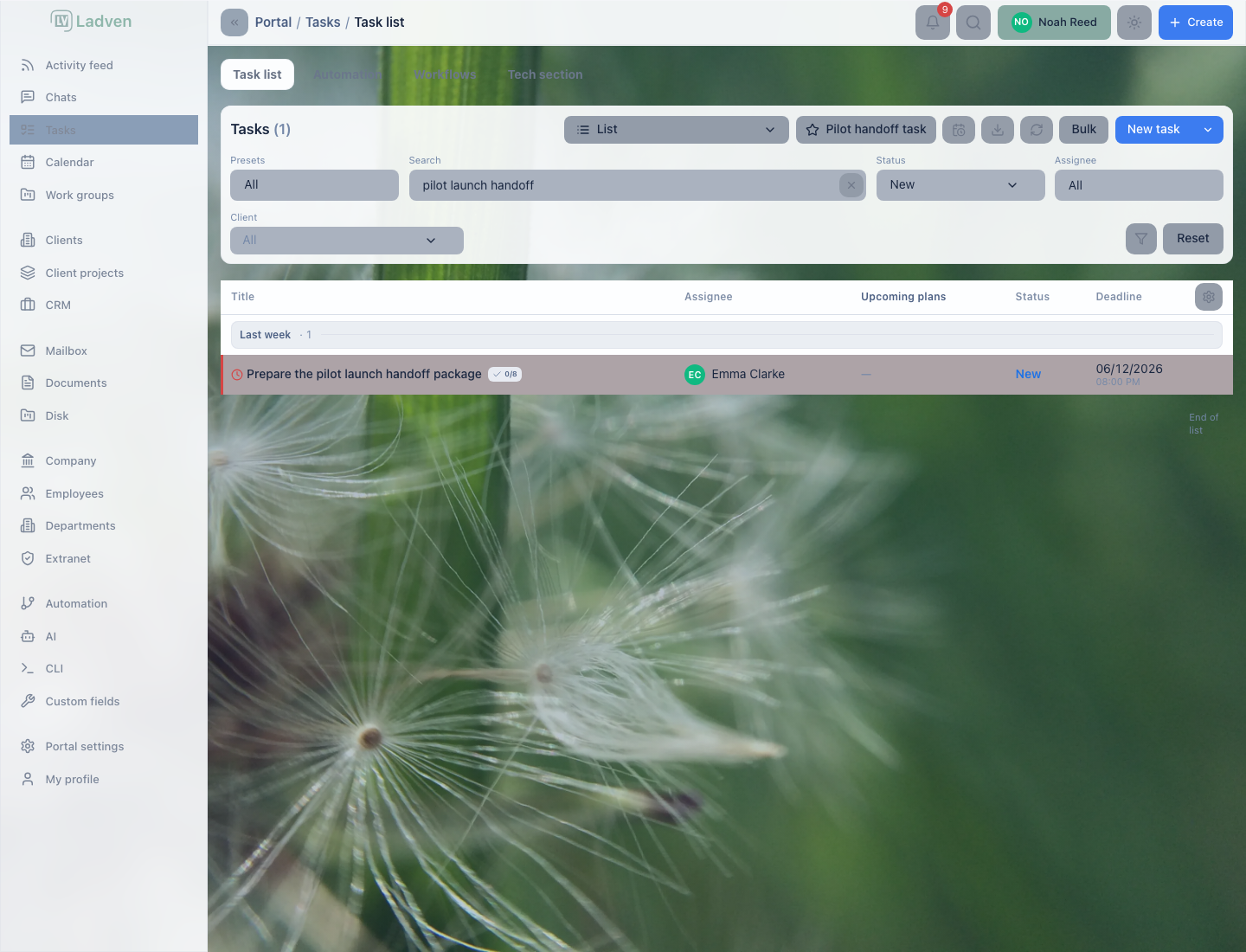
The saved slice keeps the manager's view focused on one recurring question: which pilot handoff tasks are still new, who owns them, and what deadline is closest.
Saved slices fit scenarios such as:
- "My active tasks for the week";
- "Overdue by department";
- "Client tasks without assignee";
- "Tasks for review";
- "Project report";
- "Unread with my participation".
How to create a useful slice:
- Configure search, filters, grouping, sorting, and view.
- Check that the result answers a repeatable question.
- Save the slice.
- Give it a clear name without internal abbreviations.
- Before deleting it, make sure the slice is not needed for regular control or reporting.
It is convenient for a manager to keep separate slices for department control, overdue work, client tasks, and reports. Employees benefit from slices for personal work, unread tasks, and weekly planning.
For shared management slices, establish clear rules:
- name the slice by the question it answers: "Department overdue", "In acceptance", "Without assignee";
- do not create several almost identical slices for one team;
- assign a slice owner if it is used at a planning meeting or in a report;
- when the process changes, update the existing slice instead of multiplying a new version without reason;
- an employee's personal slices should not replace shared department slices.
If the team argues about "which list is correct", it is a sign that slices have not been agreed. In LadVen OS, it is better to have fewer stable slices that everyone understands the same way than dozens of personal filters with different rules.
Configure a slice from scratch
A new slice should be built from the work question, not from the interface. For example: "Which high-priority client tasks can break the deadline this week?"
Setup order:
- Formulate the work question in one sentence.
- Enter search only if you need specific text, client, number, or project.
- Enable the quick filter closest to the goal: active, overdue, for the week, or without assignee.
- Add advanced conditions: department, assignee, client, project, status, deadline, or priority.
- Choose the view: list for precise control, Kanban for flow, schedule for workload.
- Configure grouping, sorting, and columns.
- Refresh data and check the first tasks in their cards.
- Save the slice only if it will be needed regularly.
A good slice passes a simple test: another manager can open it and understand why exactly these tasks are there. If oral explanations are needed, the slice is not ready yet.
Active timers
Active timers show tasks where time tracking is currently running. They help you quickly return to work and notice a timer that was accidentally left on.
Use active timers when you need to:
- continue a task where work is already being tracked;
- check whether time tracking was started by mistake;
- see tasks where actual labor costs are already growing;
- prepare plan and actuals by tasks before a report.
If a timer is running on the wrong task, first open the task and check the context, then correct time tracking.
The pause button for the active timer in the header is shown as an icon - so you can quickly pause time tracking without searching for a text button.
Quick task creation
Quick creation helps create a new task from the work context without extra navigation. This is convenient when, while reviewing a list, it becomes clear that an additional task, assignment, or template-based task is needed.
Before creating, check which slice you are working in. If the list is opened by client, project, or department, the new task may require checking links, participants, and deadlines.
Use a template when the task repeats a stable process: approval, check, document preparation, client launch, regular report. Do not use a template only for speed if its checklist, participants, or deadlines do not fit the current situation.
Groupings
Grouping changes the structure of the found tasks, but does not replace a filter. A filter selects tasks, while grouping arranges them into meaningful blocks.
Available groupings:
- no grouping;
- by clients;
- by work groups or projects.
Grouping by clients helps process the client flow, prepare a report by customer, and see tasks without client context.
Grouping by work groups or projects is useful for project control: which tasks belong to each direction, where there is overdue work, and which work groups need attention.
If a group is no longer needed in daily work, it can be hidden or collapsed so it does not interfere with viewing important tasks.
In group settings, you can mark priority groups, change their order, hide irrelevant groups, and decide where to show the remaining groups: before or after the priority groups. This is useful when a manager regularly reviews the same projects, clients, or work groups and does not want to search for them across the whole list every time.
Groups are separated by a light row with the name and a counter in the format "Name · N" - it marks the group boundary without overloading the list with heavy bars.
How to read grouping:
| Grouping | What it shows | What risk to look for |
|---|---|---|
| No grouping | The general task queue by selected filters | Overdue work, no assignee, tasks without deadline |
| By clients | Load and commitments by clients | Client tasks without owner, overdue promises, tasks without CRM context |
| By work groups or projects | State of project flows | Directions with accumulated review, tasks without deadline, or uneven load |
How to configure grouping for regular control:
- First choose a filter: department, client, project, status, or deadline.
- Then choose the grouping that answers the work question.
- Move priority groups to the top if they are checked at every planning meeting.
- Hide groups that do not belong to the current review.
- After the process changes, update the saved slice instead of creating a similar copy.
If a task falls into the "without client" or "without project" group, this is not always an error. But for client commitments and project work, a missing link interferes with reporting and future search. Open the task and check whether the context should be filled in.
Columns
Columns define which data is visible in the list. They should be chosen for the task: daily work needs a short set, while a report needs a fuller one.
Main columns:
- number;
- title;
- priority;
- assignee;
- next planned action;
- requester;
- project;
- status;
- deadline;
- planned time;
- spent time;
- creation date;
- update date.
For daily work, keep only the fields by which you make decisions. If there are too many columns, the list becomes a heavy report rather than a working tool. It is better to create two saved slices: one for daily control and another for export or analysis.
In column settings, you can show and hide fields, change column order by dragging, show all fields, or quickly remove extra ones. The task title remains a required column: the list should not turn into a set of metrics without a clear work item.
Recommended column sets:
| Scenario | Columns |
|---|---|
| Employee personal work | Title, status, deadline, priority, next planned action |
| Department control | Title, assignee, status, deadline, priority, update date |
| Client control | Title, client, project, assignee, status, deadline, priority |
| Plan/actual and workload | Title, assignee, deadline, planned time, spent time, status |
| Report or export | Number, title, status, deadline, assignee, requester, project, client, planned time, spent time, creation and update dates |
If a user manually enables the same columns every time, save the slice. This way the team will look at the same set of data instead of arguing why the list looks different for different people.
Columns should help make a decision. If a manager controls deadlines, assignee, status, and next planned action should be nearby. If a report is being prepared, project, client, requester, planned time, and spent time are needed. If an employee is processing a personal queue, extra reporting fields should be hidden so they do not lose focus.
Preset list settings by work question
| Work question | Grouping | Sorting | Columns | What to save |
|---|---|---|---|---|
| Department planning meeting | by work groups or projects | deadline, then priority | title, assignee, status, deadline, priority, update date | shared department slice |
| Client control | by clients or client projects | deadline | title, client, project, assignee, status, deadline, priority | client slice |
| Report or export | by work groups, projects, or no grouping | status or deadline | number, title, status, deadline, assignee, requester, project, client, plan/actual, dates | reporting slice |
| Personal queue | no grouping | deadline | title, status, deadline, priority, next planned action | personal slice |
This setup works better than one universal list for everyone. The team sees the same slice at planning meetings, the manager gets a reproducible report, and the employee is not overloaded with columns that are only needed for control.
Sorting
Sorting helps you quickly find what matters inside the already filtered tasks.
Common options:
- by deadline - to see the nearest and overdue tasks;
- by update date - to find recently changed tasks;
- by priority - to raise critical tasks;
- by assignee - to check distribution;
- by status - to assess execution flow;
- by project or client - if the list is being prepared for a report.
Do not rely only on sorting if you need to exclude unnecessary tasks. First set a filter, then sort the result.
If the list is sorted by creation date, updated date, or deadline, LadVen OS may show time separators such as today, yesterday, this week, previous period, overdue, tomorrow, later, or tasks without a date. This helps a manager read a long flat list as a manageable queue rather than as one continuous table.
These separators do not replace grouping by clients or projects. They appear inside the normal list and help quickly see where new tasks are accumulating, where many recent changes appeared, which deadlines are already overdue, and which tasks have no date at all. If you need a client or project report, first set the filter or grouping, then use date sorting as an additional reading layer.
Export
Export is needed to transfer tasks outside LadVen OS, prepare a report, or reconcile data. You can export all found tasks or only the visible part of the list.
Before export, check:
- the correct saved slice or set of filters is selected;
- search has not left an accidental restriction;
- grouping matches the report;
- visible columns reflect the needed fields;
- sorting helps read the export;
- closed or unnecessary tasks did not get into the list.
If a field is critical for the report, check the export immediately after it is generated. During export, wait for the operation to finish before starting a new export.
In task slices embedded in a project, client, or client-project context, choose the period and date type before exporting: creation date, deadline, or updated date. Then the report answers a concrete question: what appeared during the period, what must be done in the period, or what actually changed before a meeting. Excel export from that context should preserve the selected slice instead of turning into a general list of all tasks.
Data refresh
Refresh is needed when new task data may have appeared: comments, status change, deadline change, new assignee, file upload, or timer start.
Refresh the list:
- after long work on an open screen;
- before a reporting meeting;
- after a bulk change;
- if a colleague said they changed a task;
- before exporting a critical list.
If data changed after refresh, rely on the fresh result.
Actions on one task
Quick actions for a specific task are available in the list row or mobile card. They are convenient when the decision depends on the content of one task: open it, check context, go to a related object, change status, or perform an available action.
If you need to change many tasks in the same way, use bulk actions. If each task requires a separate decision, process them one by one.
Bulk actions
Bulk actions are needed for uniform changes to several tasks. They save time when the decision has already been made and is the same for all selected tasks.

A bulk action is safe when the list is first narrowed to tasks with the same meaning and the result is checked after the change.
With them, you can:
- select individual tasks;
- select all visible tasks;
- check how many tasks are selected;
- open available actions for the selected set;
- change assignee;
- change status;
- change priority;
- change project;
- change client;
- change deadline.
Use bulk actions only where tasks have the same work meaning. If the context differs, first narrow the list with filters or process tasks one by one.
Bulk work starts with selecting rows or cards. After selection, check the count and the available action panel before applying the change. Manual selection, selecting all visible tasks, and changing the entire found set are different decisions: make sure you understand which set is being changed.
Before confirming a bulk action, check four things: how many tasks are selected, which action will be applied, which filtered slice the selection belongs to, and whether the result can be undone or corrected without losing history. In LadVen OS a bulk action is a management operation, not just a faster way to press the same button many times.
Examples of safe use:
- assign one assignee to tasks without an owner within one project;
- move the deadline for a group of tasks with an agreed new plan;
- change priority for tasks that a manager has marked as urgent;
- close identical tasks after checking the result.
After a bulk change, check the result. Some tasks may not change because of permissions, task state, or required conditions. Such tasks need to be opened separately and the cause reviewed.
Treat verification after a bulk action as a separate step, not as a quick glance at a notification:
- Refresh the list or wait until the current slice updates.
- Check the number of tasks in the selected status, assigned to the selected person, or placed in the required deadline.
- Open several changed task cards and make sure the new value is visible in the card.
- Separately filter tasks that should have changed but stayed in the old state.
- Record the decision for exceptions: manual correction, a separate action, return to the requester, or escalation to the process owner.
If the action changed responsibility, the manager should make sure the new assignee really sees these tasks in their queue. If the action changed the deadline, check the schedule or the saved weekly slice. If the action changed the status, open Kanban and make sure the flow changed as expected.
On a mobile screen, first make sure you can see the selected tasks and understand which action you are applying. Do not start a bulk change if the selection is unclear.
Mobile list
On a mobile screen, the list is usually read as a set of cards. This is convenient for quickly checking a personal queue, deadline, status, and assignee, but worse for complex comparisons and report preparation.
Mobile is convenient for:
- opening personal active tasks;
- checking unread changes;
- quickly opening a task card;
- clarifying a comment, file, checklist, or deadline;
- looking at the nearest tasks for the day.
Desktop is better for:
- complex setup of advanced filters;
- bulk actions on a large set;
- configuring columns and reporting slices;
- export;
- comparing workload across several employees;
- preparing a department planning meeting.
If a manager works with the list on a phone, it is safer to use it for review and point decisions. Bulk changes, department redistribution, and report export are better done on a large screen where filters, columns, and selection context are visible.
Checklist before a bulk action
Before applying a bulk action, check:
- the list is narrowed by filters to one project, client, department, or clear work context;
- selected tasks have the same meaning of change: one new assignee, one new deadline, one status, or one priority;
- selected tasks do not contain obvious exceptions: closed, disputed, client-critical, blocked, or awaiting acceptance;
- you understand what will change in every task, not only in the first list row;
- after the operation, there is time to check the result and review unapplied tasks.
If any item is uncertain, do not run the action for the whole list. Open several tasks first, clarify context, or split the selection.
Partial result of a bulk action
A partial result means the system changed not all selected tasks. This is a normal protective situation: tasks may have different permissions, statuses, required conditions, or guard checks.
Do not repeat the action on the whole original set until the unapplied tasks are reviewed by reason. Repeating the action on the whole set can change already processed tasks again and hide the real cause of exceptions.
Read the result in three layers:
- how many tasks were selected;
- how many tasks changed successfully;
- which tasks did not change and why.
The successful part does not need the same action repeated on the whole set. Check it through the list, filter, or task card. The unapplied part requires separate review: it is no longer one common set, but a list of exceptions with different reasons.
How to act:
- Do not repeat the bulk action on the whole set immediately.
- See which tasks changed and which remained unchanged.
- Open the unapplied tasks and check the reason: permissions, status, required field, guard check, change conflict.
- Fix the reason only where it is truly needed.
- Repeat the action for the remaining tasks as a separate smaller set or process them manually.
Example: a manager selected ten tasks without an assignee and assigned an owner. Seven tasks changed, three did not: one was already closed, one is in a project without change permission, and one triggered a guard check. The correct decision is to review those three tasks separately, not repeat the assignment for all ten.
How a manager should read a partial result
For a manager, a partial result is not only an error list. It shows where the same management decision stopped being the same for every task:
| What you saw after the action | What it can mean | How to act |
|---|---|---|
| Some tasks did not change because of permissions | the user does not own the process or object | pass the action to the process owner or adjust permissions through the responsible administrator |
| A task is closed or in acceptance | the status no longer fits the bulk change | open the task and make a separate decision: leave it, return it, or create a related task |
| A required field is missing | the task statement or context is incomplete | fill the missing data manually and check why the task entered the flow without it |
| A guard check triggered | LadVen OS prevents an incorrect change | do not bypass the check; understand the reason through the task card |
| Another participant changed the task during the operation | the list is outdated | refresh data and re-evaluate only the remaining tasks |
Do not treat unapplied tasks as a "tail" that should be quickly finished with the same action. Usually this is where the risk is: incomplete task statement, responsibility conflict, closed result, or access limit.
Practical review order for a manager:
- First confirm the successful part: changed tasks should no longer remain in the original problem slice.
- Then collect a separate slice of unapplied tasks if the interface lets you quickly isolate them.
- Choose a separate action for each reason: permissions - pass to the owner; status - decide on the result; required field - fill the context; guard check - fix the process violation.
- After manual review, reopen the original slice. It should not contain tasks where the decision has already been made.
- If the same reasons repeat, fix the task creation process, not only the current list.
For more about such situations, see Errors, limits, and unavailable actions.
Empty, loading, and error states
The tasks section should help users understand why tasks are not displayed and what to do next.
Loading
During loading, do not conclude that there are no tasks. Wait for the update to finish or check the state indicator.
Empty list
An empty list can mean different situations:
- there really are no tasks;
- the selected filters found no results;
- the search query is too narrow;
- a saved slice hides the needed tasks;
- a group is collapsed or hidden;
- the wrong view is selected.
Correct diagnosis:
- Reset search.
- Check quick filters.
- Check advanced conditions.
- Open the full list if you need the entire task set.
- Check grouping and the selected view.
- Refresh data.
Error
A list error means data could not be loaded or refreshed. An action error means a specific operation was not applied.
What to do:
- retry refresh;
- check whether access permissions have changed;
- narrow the filter if the request is too broad;
- after a bulk action error, open several tasks and check their actual state;
- before repeating export, make sure the previous export finished or clearly failed.
If the error is related to access, the user may see the list without some data or may be unable to open a specific task.
Daily work
For daily work, it is useful to keep several simple slices instead of one complex filter for all cases.
Recommended morning order:
- Open the "My active" or "With my participation" slice.
- Check unread tasks.
- Look at overdue tasks.
- Switch to the week to see upcoming deadlines.
- Check tasks with preliminary estimate.
- Open Kanban or schedule if you need to assess the work flow.
- Refresh data before making decisions.
For a team manager:
- use the department filter;
- check tasks without an assignee;
- review overdue and priority tasks separately;
- use the people schedule to assess workload;
- save separate slices for control and reporting;
- apply bulk actions only after checking context.
For a performer:
- start with the personal work list;
- keep columns to a minimum;
- sort by deadline;
- use the weekly schedule for planning;
- check unread tasks before starting work;
- record tasks without deadline or clarification so they do not fall out of the plan.
Regular manager control
For a manager, it is important not just to open the task list, but to go through it in the same order. Then control becomes predictable and does not turn into manual status collection.
This section describes the mechanics of control slices. The management routine — when and how to walk this route, what to check daily and what to check once a month — is described separately in Manager's Weekly Rhythm.
Recommended weekly review order:
- Open a slice by department or direction.
- Check overdue tasks and delay reasons.
- Find tasks without an assignee, deadline, or clear next step.
- Open tasks in acceptance and decide: close, return for revision, or clarify criteria.
- Look at the people schedule and assess overload.
- Check client and priority tasks separately.
- Record changes in task cards, not in personal chats.
- Save or update the slice if the regular question has changed.
It is convenient to run this review as a short management route, not as reading every row in order.
| Control step | Where to look | Decision to make |
|---|---|---|
| Is anything overdue | "Overdue" quick filter, deadline sorting | return the task to the plan: new deadline, reason, owner of the next step |
| Are there tasks without an owner | "No assignee" filter, grouping by project or client | assign the result owner or close an unnecessary task |
| Where acceptance is stuck | Kanban by statuses, "In review" column | accept, return for revision, or clarify result criteria |
| Who is overloaded | people schedule | move the deadline, redistribute work, or remove unnecessary work |
| What matters for a client | client/project filter, priority, nearest deadline | open the card and record a publicly clear next step |
| What repeats every week | saved slices, repeated tasks, manual actions | turn the process into a template, recurring task, or automation rule |
During such a review, do not change tasks in bulk only because they appeared in one list. First make sure they have the same context and the same management decision.
For a business owner, not all operational details are useful. Several signals matter:
- how many tasks are overdue in key directions;
- whether there are tasks without an assignee;
- which client commitments are at risk;
- where work has accumulated in acceptance;
- which processes regularly require manual intervention;
- which tasks repeat and should become a template or automation.
If the same slice shows the same problem every week, it is a reason to change the process, not just review the list again.
After the review, the list should leave a verifiable result:
- every risky task has an owner of the next action;
- overdue work is either corrected or explained in the task card;
- tasks in acceptance do not hang without the requester's decision;
- people overload is reflected in deadlines or task distribution;
- repeated manual actions are moved into the template and automation improvement plan;
- the saved slice remains understandable for the next planning meeting.
Task-list planning meeting checklist
Use the task list as the meeting base, but do not turn the meeting into reading rows aloud. The goal is to make decisions and record them in task cards.
Before or during the planning meeting, check:
- overdue tasks and delay reasons;
- tasks without an assignee, deadline, or clear next step;
- tasks in acceptance and who must decide on the result;
- client and priority tasks that cannot be lost;
- people schedule and overload risks;
- tasks that can be reassigned, moved, split, or closed;
- whether every decision is recorded in the task card: comment, deadline, assignee, related task, or acceptance decision;
- whether the saved slice still matches the regular management question.
A good meeting result is not a clean-looking list, but fewer unclear tasks: every risky task has an owner, next step, deadline, or separate decision.
Preparing a report
A reporting list must be reproducible: another user should understand which conditions were applied and why the export looks exactly this way.
Preparation order:
- Define the report question: client, project, department, performer, deadline, status, or overdue work.
- Configure filters for this question.
- Choose grouping: by client, by project, or without grouping.
- Enable reporting columns: number, title, status, deadline, assignee, requester, project, planned and spent time, creation and update dates.
- Sort the list so it is easy to read.
- Save the slice if the report is needed regularly.
- Refresh data.
- Export all found tasks or the visible part of the list.
- Check the export: task set, columns, sorting, and absence of an accidental search query.
Do not use bulk actions while preparing a report if the goal is only to view data. Bulk actions change tasks, not report structure.
Quick scenarios
Find overdue team tasks
- Open the task list.
- Enable the "Overdue" filter.
- Add a department filter.
- Sort by deadline.
- Check assignees in the column or open the people schedule.
Prepare a client report
- Select the client.
- Keep active tasks or the needed statuses.
- Group by projects if the client has several directions.
- Enable status, deadline, assignee, planned time, and spent time columns.
- Refresh data.
- Export the found tasks.
Process tasks without an owner
- Enable the "Without assignee" filter.
- Add project, client, or department if the list is too broad.
- Open tasks where context is needed.
- Assign an assignee in bulk only for tasks with the same result owner.
Check a performer's week
- Open the weekly schedule or people schedule.
- Select the needed assignee or department.
- Check deadline concentration by day.
- Find overdue and priority tasks.
- Move or reassign tasks only after checking context.
Prepare for a department planning meeting
- Open the saved department slice.
- Check overdue and priority tasks.
- Look at tasks without an assignee.
- Open the people schedule and assess workload.
- Record tasks that need to be reassigned, moved, or discussed separately.
Process the personal queue
- Open the personal slice.
- Sort tasks by deadline.
- Check unread changes.
- Move tasks without a deadline into the weekly plan.
- Set aside tasks that are waiting for clarification, and leave only a clear queue in work.
Common mistakes
Working from the full list. The full list quickly turns into noise. Daily work needs slices for a specific question.
Saving overly complex filters. If a slice cannot be explained in one sentence, colleagues will not understand why exactly these tasks are in it.
Treating overdue work as the only risk signal. A task without an assignee, deadline, next step, or acceptance also needs attention.
Changing tasks in bulk without checking context. The same status in a list does not mean the same management situation.
Making a report from a random screen state. Before export, check search, filters, grouping, sorting, and columns.
Using Kanban as a replacement for the task card. Kanban shows movement, but decisions, files, comments, and acceptance remain in the card.
Not refreshing data before a meeting. An old list creates a false picture of workload and deadlines.
Good practices
- Keep separate slices for personal work, department, overdue work, acceptance, and client tasks.
- Start review with risks: overdue work, no assignee, no deadline, unread changes.
- Open the task card before an important decision.
- Use the people schedule to redistribute workload, not to look for someone to blame.
- Before a bulk change, narrow the list with filters to tasks with the same meaning.
- For a report, save a reproducible slice so it can be repeated later.
- If a slice regularly shows the same problem, turn it into a template, regulation, or automation.
Which Task-List Views to Understand
The task list is useful not as one general screen, but as a set of working views. They help narrow tasks, see risks, prepare reports, and make decisions without opening every card.
| View | What it helps understand |
|---|---|
| General list with quick filters | the starting screen and the basic way to narrow tasks |
| Advanced filters | exact task search conditions |
| Saved slices | regular working sets for a manager and employee |
| Kanban by statuses | task execution flow, column buildup, and bottlenecks before acceptance |
| Personal Kanban | an employee's personal queue, tasks in progress, and tasks waiting for clarification |
| Weekly schedule | deadline planning by day |
| People schedule | team workload control |
| Partial bulk-action result | what changed, what did not change, and how to review exceptions |
| Bulk actions | safe changing of several tasks |
| Export | preparation of a reporting list |
| Empty list after filter | diagnosis of filters and search |
Before showing a list in a planning meeting, report, training session, or customer review, check data safety: real clients, private materials, unrelated employees, and internal links must not be visible.