Task Fields and Work Context
LadVen OS, the operating system for business, helps capture the work agreement in task fields: what result is needed, who is responsible, when it must be ready, where the materials are, and how verification will happen. For an employee, this is an instruction for action. For a manager, it is the basis for control, reporting, and team manageability.

The diagram shows that task fields are not a formal questionnaire: they connect result, responsibility, context, proof, and reporting.
A well-filled task reduces clarification in chats, helps find work faster, shows responsibility, and preserves the history of decisions. If a field affects execution, search, reports, the client, or result acceptance, fill it in deliberately.
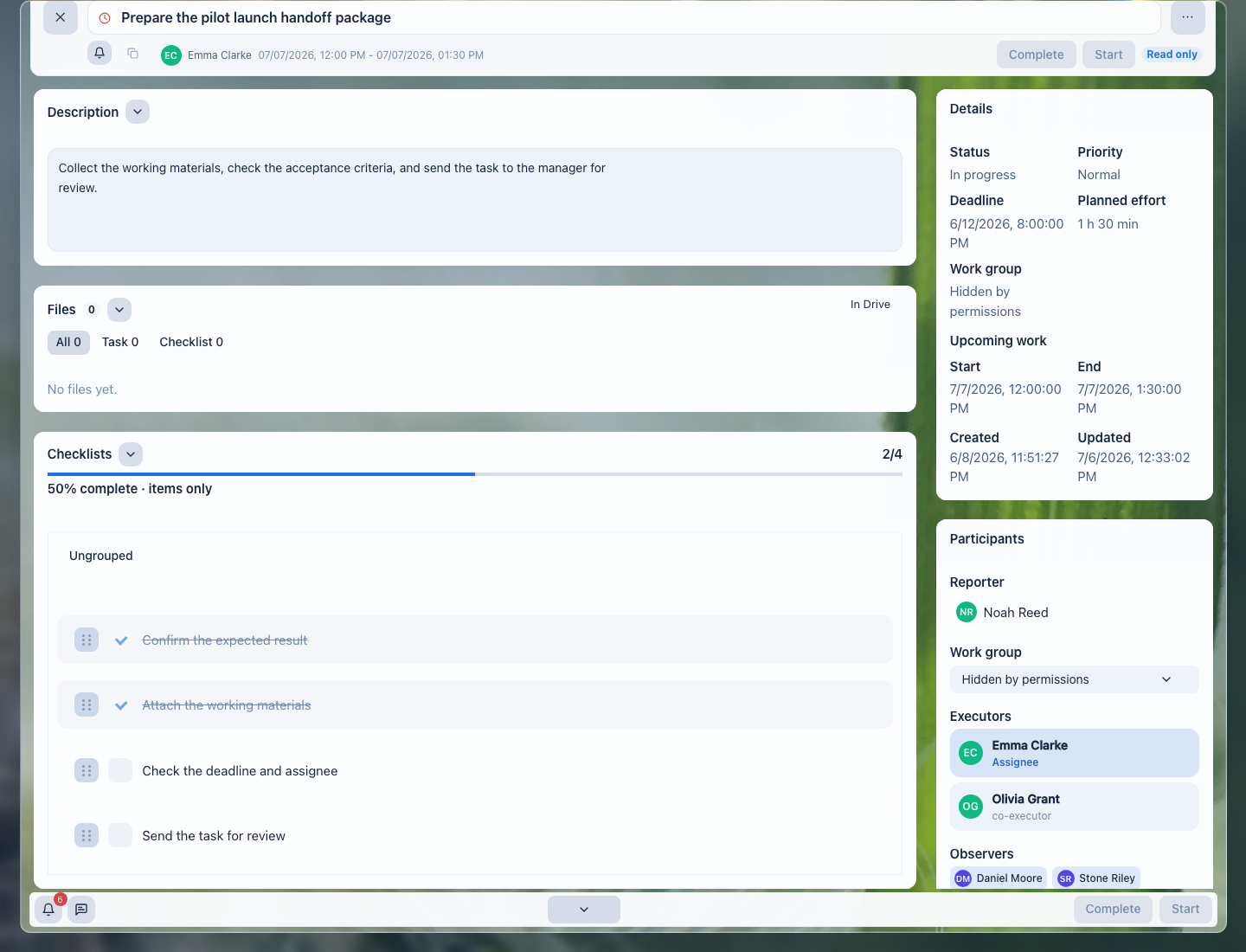
The task card shows status, priority, deadline, planned effort, upcoming work, participants, and related tasks in one place. The assignee sees what to do next; the manager sees whether the task can be controlled and accepted.
Task fields are a work map, not a formal questionnaire. An employee should see the first action, materials, and readiness criterion. A manager should quickly check the assignee, deadline, client or project context, and acceptance risk. A process owner can tell from the fields whether similar tasks can be found, reported, and repeated without manually rebuilding the history.
Main Rule
A task must answer four questions:
- what result must appear;
- why it is needed and which context it belongs to;
- who is responsible for execution and review;
- by which signs the result is considered ready.
If these answers cannot be found in the title, description, participants, deadlines, links, files, or comments, the task is incomplete. Do not move important agreements into private messages: the decision, source, and readiness criteria must remain inside the task.
Minimum Field Set by Situation
Do not fill every field mechanically. Fill the fields that make the task executable, searchable, reportable, and acceptable.
| Situation | Fill first | Why it matters |
|---|---|---|
| Simple internal task | Title, assignee, deadline, readiness criterion. | The assignee can start without clarification, and the manager sees the owner and date. |
| Commitment to a client or project | Client or project, expected result, file or source, deadline, reviewer. | The task stays tied to the commitment and acceptance route. |
| Work affects workload or reporting | Planned time, estimate, deadline, project or client, scope comment. | The manager can compare plan with actuals and explain effort. |
| Dependent or blocked work | Related task, dependency owner, next check date, blocker comment. | The risk has an owner, and the task does not turn into a silent overdue item. |
| Repeatable process or template task | Checklist, tags, role split, file location, acceptance criterion. | The process can be repeated and checked without rebuilding chat history. |
Before saving, check that:
- the assignee can start without asking in chat;
- the manager can find the task in the right slice or report;
- the reviewer can accept or return the result by clear criteria;
- a new participant can reconstruct the context from the task itself.
Work Context Map
Task fields work as a management card. Some fields explain what must be done; others connect the work to the client, project, documents, and reports. If they are filled in consistently across the company, the manager gets a readable control system instead of scattered assignments.
| Field | Why the employee needs it | Why the manager needs it |
|---|---|---|
| Title | Understand the result without opening the whole history. | Read lists quickly and see the meaning of assignments. |
| Description | Start work without searching old messages. | Check assignment quality and acceptance criteria. |
| Deadline and priority | Understand execution order. | See risks, overload, and client commitments. |
| Planned and actual time | Estimate work volume and record labor effort. | Compare plan with actuals, manage workload, and explain deviations. |
| Project or workgroup | Find materials and participants of the shared process. | Control project stages and team work. |
| Client and client project | See interaction history and client expectations. | Manage commitments, service quality, and client reporting. |
| CRM record | Understand the link to a lead, deal, invoice, or request. | Avoid losing the next sales or support step. |
| Documents and files | Work with current materials. | Verify the result against sources, not retellings. |
| Related tasks | See dependencies and adjacent assignments. | Control chains of work, blockers, and responsibility split. |
| Tags | Quickly find tasks of one type. | Build slices by process, topic, and repeated problems. |
Not every field must be filled in every task. It is mandatory to fill in fields without which the task loses manageability: it cannot be found, checked, linked to a client, estimated by time, or explained to participants.
Title
The title appears in lists, notifications, search, relations, and reports. It must quickly explain the expected result even without opening the card.
A good title:
- starts with an action or expected result;
- contains the work object: document, client, project, list, meeting, setting;
- does not depend on verbal context;
- helps distinguish the task from neighboring tasks;
- does not turn into a long description.
Examples:
| Poor | Good |
|---|---|
Client | Prepare response to client on implementation timeline |
Documents | Check contract before sending to client |
Urgent | Agree pilot launch date |
Look at it | Check April payment export |
Clear titles matter to managers as much as to executors: they make lists easier to read, stuck assignments easier to find, and team workload visible without decoding every task.
Description
The description explains context, scope, and readiness criteria. It must be complete enough for the executor to start without searching old messages.
Convenient structure:
Context:
Why the task appeared, which client, project, document, or decision it relates to.

What to do:
1. Specific action.
2. Specific action.
3. What to provide as the result.

Readiness criteria:
- what must be attached, updated, or approved;
- who checks the result and where;
- which constraints or exceptions must be considered.
The description does not replace files, documents, or client and CRM links. If the task references an external object, add the link or relation and explain what exactly should be checked there.
Mentions in the description help point attention to a person, document, task, or related context immediately. Use them as navigation cues, not as a substitute for task participants, an action request in comments, or access setup: the assignee, reviewer, and material permissions still belong in structured fields.
Text Formatting
Formatting is needed for readability: sections, lists, links, quotes, important warnings, and data fragments. It should help understand the task, not decorate it.
Use formatting for:
- headings inside a long description;
- numbered steps;
- lists of readiness criteria;
- links with clear names;
- quotes from a client, contract, or comment;
- short tables when comparing options.
If the description becomes too long, split the work. Repeating steps are better moved into a checklist, materials into files or documents, and separate independent results into related tasks.
Readiness Criteria
Readiness criteria show how the result will be checked. They are especially important for documents, client replies, approvals, reports, settings, and multi-step processes.
A good criterion can be verified:
- final file version is attached to the task;
- the link opens for the requester and assignee;
- the document is updated without draft comments;
- the client response is approved and sent;
- the checklist of required checks is closed;
- planned and actual time are checked before closure;
- the final decision is recorded in a comment.
A poor criterion sounds like a feeling: "do it properly", "figure it out", "check if possible". Such wording is hard to accept or return for rework without dispute.
Status
Status shows which stage the work is in. It is not a formality; it is used to manage the task flow: the manager sees what has not started, what is being done, what waits for review, what is accepted, and what is stopped.
| Status | What it means for work |
|---|---|
| New | The task has been assigned, but work has not started. Context, assignee, and expected result must be clear. |
| In progress | The assignee is working, clarifying details, updating checklist, files, or comments. |
| On review | The executor considers the result ready and submitted it for review. The task must show where to check the outcome. |
| Under control | Separate control by a manager, client, or process owner is needed. |
| Completed | The result is accepted, readiness criteria are met, open questions are closed. |
| Deferred | Work is postponed for a clear reason. Specify what you are waiting for and when to return to the task. |
| Canceled | The result is no longer needed. It is better to record the cancellation reason in a comment. |
| Not completed | The result was not achieved, and this must be distinguished from cancellation or rescheduling. |
Do not close a task only because the executor wrote "done". First check the result, readiness criteria, files, checklist, comments, and time tracking if it matters for this work.
Priority and Deadline
Priority helps compare the task with other work. The deadline shows when the result is needed. Together they help plan workload, see risks, and avoid losing important commitments.
High priority is appropriate when a task must be handled before the normal flow: it blocks a client, launch, payment, control date, or another team's work. If a task is simply important by meaning, explain the importance in the description and choose a realistic deadline.
The deadline must be the date when the result is needed, not the date when the requester remembered the task. If the deadline is unknown, record in the description who must clarify it and when.
Before saving, check:
- the deadline matches a real need;
- high priority is explained by context;
- the deadline does not conflict with the assignee's workload;
- when moving the deadline, the reason is visible in a comment or history;
- a task without a deadline will not be lost because there is no agreement.
Planned Time
Planned time shows the expected work volume. It helps a manager evaluate workload, compare plan and actuals, prepare client or internal reports, and notice tasks that grew beyond the original agreement.
Fill in planned time if the task affects team workload, work cost, client reporting, or requires a preliminary estimate. Do not include waiting for a client response or calendar pauses if no work is being performed during that time.
For a business owner, planned time is especially important in repeated processes: contract preparation, inbound request handling, client implementation, support, reporting. If similar tasks regularly take more time than expected, the process, template, role split, or service cost should be reviewed.
Planned time must not become a formality. If the task grew, record the reason and update the estimate. Otherwise the report will show a beautiful plan but will not explain why the team is late or why client work became more expensive.
Planned and actual time show labor effort, not cost. If the report is used for a client, budget, or invoice, check the rate, currency, and source of the cost calculation separately; do not derive money only from hours in the task.
For planned time, timer, actual time, and plan/actual comparison, see Track Time in a Task.
Result Review
Result review is needed when a task cannot be considered complete merely because an action was performed. This applies to contracts, commercial proposals, client replies, files, settings, reports, and any tasks where the requester must accept the outcome.
The task must make clear:
- who reviews the result;
- what exactly must be opened or checked;
- which criteria are mandatory;
- where the final version is located;
- what to do if the task is returned for rework.
If review is mandatory, the executor should not close the task bypassing acceptance. If review is not needed, that should also be clear from the process: for example, the assignee closes the task after performing the action and recording the result in a comment.
Preliminary Estimate
A preliminary estimate is needed when it is important to understand volume, complexity, risks, or deadline before execution. It helps avoid starting work with incorrect expectations and avoid promising a result to a client or manager without understanding effort.
Use a preliminary estimate if:
- the requester does not know the real scope;
- the task may be too large for one deadline;
- a choice between solution options is needed;
- the client or manager must approve effort;
- the process requires an estimate before start.
After the estimate, record the outcome in the task: update planned time, deadline, description, checklist, or comment. Do not leave the estimate only in the executor's head or in a private message.
A good preliminary estimate answers three questions: how long the work will take, what may increase the scope, and what decision is needed before start. If the estimate shows the task is too large, split it into stages or related tasks so control does not depend on one long assignment.
Tags
Tags help find and group tasks by process, topic, or work type. A tag should answer: "Which slice will be needed later?"
Good tags:
contract;pilot;approval;implementation;client-request;reporting.
Do not duplicate status, assignee, project, or client with tags. If a tag does not help filter tasks, prepare a report, or start a repeated process, it is better not to add it.
A company benefits not from random separate tags, but from a shared vocabulary. If one department writes contract, another writes contracts, and a third writes agreements, search and reports split into incomplete slices. Agree on a short list of working tags for repeated processes and do not use tags as comments.
A tag is worth adding if tasks will later be searched, process quality reviewed, or a management report assembled by it. For example, client-request helps see how many tasks came from clients, and approval shows where delays often appear.
Project and Workgroup
A project connects the task to a managed flow of work: launch, implementation, development, support, event preparation, or another set of tasks with a common result.
A workgroup is useful when the task belongs to a stable team, direction, or space where participants already share context and access to materials.
Choose a project or workgroup if it helps:
- find the task in lists and reports;
- see team workload;
- connect the task to a project stage;
- give participants access to needed context;
- avoid losing the task among personal assignments.
Do not use a project as a decorative folder. If the task does not belong to project work, an unnecessary link creates noise in reports and prevents the manager from seeing the real picture.
For a manager, the project answers which business result the assignment belongs to. If the project is selected correctly, the manager can see not only separate deadlines, but overall readiness of the direction: which tasks are open, what is overdue, where participants are missing, and which stages need a decision.
If a task belongs to a project but no project is selected, it remains a personal assignment in the executor's list. It becomes harder to account for it in the project picture, hand it to a new participant, and check it when closing a stage.
Client and Client Project
The client link shows that the task affects client history: sale, implementation, support, contract, payment, meeting, or request. This link lets the manager and supervisor see not an isolated assignment, but part of client work.
The client project clarifies the direction within the client. It is needed when one client has several parallel work streams: implementation, support, integration, training, legal approval.
Before saving, check:
- the correct client is selected, not a company with a similar name;
- the client project matches the current work stream;
- participants have access to client context;
- the task outcome must be returned to client history or CRM;
- files and comments do not contain extra data for participants without required access.
If a task belongs to a client but the client is not selected, it becomes harder to find later in interaction history, client reports, and commitment control.
Client links are especially important for promises: prepare a proposal, reply to an email, check a contract, hold training, fix a problem, approve payment. In such tasks, the client must be specified not for order, but so any manager can open client history and see what was promised, who is responsible, and where the work stands.
If the wrong client project is selected, the task may land in the wrong work stream. For example, an implementation assignment may appear in support, and legal approval in sales. For an employee this is inconvenient; for a manager it distorts reporting and client risk.
Task Slices in Project and Client Context
A project, client, or client-project card can include an embedded slice of related tasks. It helps a manager see not only an individual task, but the whole work flow around a specific result or commitment.
Use this slice when you need to answer quickly:
- which tasks appeared for the project or client during a period;
- which tasks must be completed in the selected period;
- which tasks changed recently before a meeting or report;
- where there is overdue work, unclosed time, or incomplete context;
- which list should be exported to Excel for discussion.
Before export, choose the period and date type: creation, deadline, or update. These are different management questions. Creation date shows incoming work volume, deadline shows commitments for the period, and updated date shows where work or context actually changed.
Do not use the embedded slice as a substitute for a complete task instruction. If the context shows only the title, still open the task card and check description, assignee, deadline, files, comments, and plan versus actuals before making a management decision.
CRM and Other Work Context
A CRM link is needed when the task continues work on a lead, deal, company, contact, invoice, request, or another sales and support object.
If the linked CRM record contains an amount, invoice, payment, or budget, do not copy it into the task as a standalone financial fact. Before a report, export, or client discussion, check the source amount, currency, conversion date and rate, tax or discount assumptions, and access rights. Task hours are not a billing source, and a copied CRM amount does not become authoritative just because it appears in the task description. If money is not needed to perform the task, leave it in CRM context and describe only the work step in the task.
Add CRM context if the task:
- appeared from a call, email, meeting, or deal;
- affects the next sales step;
- is needed for a contract, invoice, proposal, or implementation;
- must be visible to the manager in client history;
- requires updating CRM after completion.
One CRM link does not replace the description. The task must still say exactly what to do with the deal or client.
If the task appeared from a comment, document, file, another task, or external request, keep the source in the description, link, or comment. In a week, "as discussed" no longer helps reconstruct context.
CRM context is useful only when it helps execute the next step. If the task is linked to a deal, it must be clear what exactly should be done: prepare an invoice, update a contact, approve terms, check payment, schedule a meeting, send a document. A plain CRM link without an assignment forces the executor to reconstruct the history.
For a manager, the CRM link shows that operational work is connected to sales and support. It helps check whether the next step was lost, whether the client issue is stuck, and whether history was updated after completion.
Documents, Files, and Sources
Documents and files answer: what is the work based on, and where should the result be checked? These may be contracts, invoices, commercial proposals, requirements documents, spreadsheets, regulations, layouts, screenshots, reports, emails, or links to external work documents.
Add a document or file if it:
- is needed by the executor to perform the task;
- confirms the result;
- contains source requirements or a client decision;
- must be checked by a manager, lawyer, accounting, or another department;
- will be needed later to reconstruct history.
A document must have a clear purpose. Do not leave a set of links in the task without explanation: a participant must understand which document is the source, which is draft, which is final, and which is only for reference.
Good practice:
- briefly write in the description what to do with the key document;
- specify the final file or link in readiness criteria;
- discuss intermediate versions in comments;
- do not mix outdated or accidental attachments with the final result;
- check participant access to the document before handing the task to execution or acceptance.
For client tasks, it is especially important not to move work materials from LadVen OS into private messages. When the document, comment, and decision are in the task, a new participant or manager can reconstruct context without a separate retelling.
For attachments, see Attach Files to a Task.
Linked Context
Linked context shows where the task came from and what it affects. This may be another task, comment, document, CRM record, client, project, request, or external work source.
A relation is needed if the reason for the task or dependency between work would otherwise be lost:
- one task blocks another;
- an assignment appeared from a client request;
- the result is needed for a deal, invoice, or contract;
- a document must go through approval;
- the task continues a project stage;
- the manager needs to see the work chain, not isolated assignments.
A relation does not replace assignment. Even if the task is linked to a deal, project, or document, the title and description must still make clear what result is required. Otherwise the relation becomes "go look yourself", not work context.
For dependencies and related tasks, see Task Relations.
Work Plan
Use the work plan for near-term steps that are not yet independent tasks. This may be a short list of expected actions, the next check, an agreement about continuation, or an upcoming stage.
The work plan is useful when:
- the task is temporarily deferred, but the next step is clear;
- it should show what will happen after a preliminary estimate;
- the result depends on an external response;
- the requester wants to see near-term actions without reading all correspondence;
- part of the work is too early to move into a child task.
Do not keep a full project plan in the work plan. If a step has a separate assignee, deadline, or verifiable result, create a related or child task.
If the task card shows an upcoming work block, use it as an operational load plan: who continues the work, when they start, when they should finish, what workload is expected, and why the step may move. This helps a manager see not only the task deadline, but the assignee's nearest work slot. If that step becomes an independent result or needs acceptance, move it into a separate or related task.
Created and Updated Dates
Created and updated dates help understand task freshness and change history. Created date shows when the task appeared. Updated date shows when important information, a comment, file, checklist, or status last changed.
Use these dates as signals:
- an old task without updates may be forgotten;
- a new update before closure requires checking;
- a sudden deadline move or assignee change should have an explanation;
- a task with client context may need a current comment before reporting;
- an outdated task may need cancellation, rescheduling, or re-assignment.
Updated date by itself does not prove progress. To verify the result, check description, files, checklist, comments, status, and time.
How to Fill and Change Fields
Field meaning must remain the same at every stage: creation, reading, editing, and closing. Change fields not "for order", but so the work agreement remains current.
During Creation
Fill the minimum work context before saving:
- Title as a result.
- Description with context, actions, and readiness criteria.
- Requester (Reporter role), assignee, and needed participants.
- Deadline, priority, and planned time if they affect execution.
- Project, workgroup, client, client project, or CRM link if the task belongs to them.
- Tags if they are needed for search or process.
- Files, documents, checklist, and links if work cannot start or be checked without them.
Before saving, check data from a template, copy, or source. Old participants, deadline, files, or client link may belong to another situation.
During View
In view mode, the task must help make a decision: start work, clarify context, review the result, return it for rework, or close it.
Check:
- whether the status matches the real state;
- whether context is complete enough for execution;
- whether deadline, planned time, client, or CRM link are outdated;
- whether files, documents, and readiness criteria are visible;
- whether the latest changes are saved;
- whether a field must be fixed so participants work from the current agreement.
During Editing
Editing must fix the source of the problem, not mask it. If scope changed, update description, checklist, planned time, and deadline. If client context changed, check CRM, project, participants, and file access.
After editing, check:
- the new field value is visible in the task;
- lists, filters, or related objects show current data;
- participants understand what changed;
- a comment was left for an important change;
- the task does not keep an outdated agreement in description, files, or checklist.
Access and Saving Changes
Sometimes a field cannot be changed because of the user's role, task status, or process settings. Do not bypass such restrictions with comments like "treat the deadline as different". If a field affects the process, report, or responsibility, it must be changed through an available method or the limitation must be explained to participants until the administrator or process owner decides.
If you changed an important field, make sure the change was actually saved and is clear to participants. For responsible changes affecting deadline, client, executor, cost, or acceptance, leave a short comment explaining what changed and why.
If saving failed or you see the old value after refreshing the task, do not continue work based on assumption. Clarify the current value, repeat the change if needed, and record the agreement in the task.
How Managers Use Fields for Control
Task fields help managers control not isolated assignments, but the work system:
- title and description show assignment quality;
- assignee and participants record responsibility;
- deadline and priority show risks and overload;
- project, client, and CRM connect the task to business context;
- tags provide quick slices by process and work type;
- planned and actual time compare expectations with real effort;
- status and readiness criteria separate "working" from "ready and accepted".
If tasks regularly have empty descriptions, no deadlines, no client, or vague readiness criteria, this is not only formatting. It means the assignment process does not give the team enough manageability.
Practical management control is built on regular slices:
| Slice | What to check | Risk shown |
|---|---|---|
| Overdue high-priority tasks | Deadline, assignee, client, reason for move. | The team is late on critical commitments. |
| Tasks without client or CRM in client work | Title, description, project, comments. | Client history is incomplete and commitments are hard to reconstruct. |
| Tasks without description or readiness criteria | Title, comments, files, checklist. | Executor and reviewer understand the result differently. |
| Tasks with large plan/actual deviation | Planned time, actual time, comments. | The process is underestimated, service became more expensive, or the task grew. |
| Tasks without updates | Updated date, status, last comment. | Work stopped, but status does not show it. |
| Frequent tags or repeating task types | Tags, projects, clients, assignees. | A repeatable process can be standardized or automated. |
This control does not require reading every task in full. The manager first reviews slices, then opens only risky tasks: overdue, no context, no client, no result, no clear review.
How Fields Help Search and Reports
Search works better when important information is placed in dedicated fields, not only in correspondence. Title helps find the result, client helps find interaction history, project shows the work stream, CRM shows the deal or request, tags show the repeatable topic, and files or documents show the source or evidence.
If the task will be needed for future search, think in advance how it will be found:
- by client: select the client and client project;
- by sales or support: add a CRM record;
- by internal direction: select a project or workgroup;
- by work type: add an agreed tag;
- by document: attach a file or link and explain its purpose;
- by commitment deadline: set a realistic deadline and update it when changed;
- by labor effort or workload: fill in planned and actual time.
A common mistake is putting all context into the description and leaving structural fields empty. Then the task can be read if already found, but is hard to find in lists, reports, and client history.
How to Verify the Result
Result verification starts not with status, but with the agreement in task fields.
Working order:
- Open the task.
- Read the title, description, and readiness criteria.
- Check status, deadline, priority, and planned time.
- Open files, documents, links, CRM, and client context if they are needed for acceptance.
- Review the checklist, comments, and latest updates.
- Check actual time if the task participates in time tracking.
- Make sure the result is available to the reviewer and needed participants.
- If the result matches the criteria, accept or close the task.
- If revisions are needed, return the task with a specific comment.
If readiness criteria changed during the process, first record this in a comment or description, then accept the result under the new agreement.
Good Practices
- Write the title as a result, not as a topic.
- In the description, separate context, actions, and readiness criteria.
- Use text formatting only for readability.
- Add project, client, CRM, linked context, and tags when they help find, verify, or report on the task.
- Link key documents to the task and explain what to do with them.
- Explain high priority and deadline moves.
- Update planned time and preliminary estimate if scope changed.
- Record important field changes in a comment.
- Check participant access to files, documents, client, CRM, and project.
- Make sure important changes are saved before closing the task.
- After editing, look at the task through the executor's or reviewer's eyes.
- Use a shared tag vocabulary so search and reports do not split into similar variants.
- Do not close a client task until the outcome is reflected in the needed history: comment, file, CRM, or client context.
Common Mistakes
- title describes a topic, not a result;
- description is only one link without explanation;
- readiness criteria are missing or sound like "do it properly";
- high priority is used instead of explaining urgency;
- deadline is set "for today" without a real reason;
- planned time is not updated after scope grows;
- tags duplicate status, project, or assignee;
- client, project, or CRM is not selected even though all context is there;
- document is attached without explanation, so participants do not know whether it is a source or final version;
- CRM, project, or task relation is added, but the description has no concrete assignment;
- similar tags multiply without a shared vocabulary and break search;
- wrong client project sends the task into the wrong work stream;
- task is closed without checking files, comments, and time;
- access restrictions are bypassed with a verbal agreement;
- an important field change is not explained to participants.
What Good Context Should Show
Check context by role. The employee must understand the first action and where to get materials. The manager must see who owns the result, where deadline or acceptance risk exists, and what should be clarified before closure. The process owner must understand whether the task will reach the right report, client flow, or repeatable template. If context is missing, fix the field or leave a decision comment before the task goes to acceptance.
When viewing a task, a manager must quickly understand not only the current status, but the work logic of the assignment:
- which result is described in the card;
- which files are current materials;
- which deadline and priority affect planning;
- whether review or preliminary estimate is required;
- who assigned the task, who is responsible, and who observes;
- whether there is a client, project, CRM, or workgroup;
- which tags help find similar tasks and build a report.
Missing context is not always an error. But if the task cannot be found, checked, or linked to a client commitment without that field, the field must be filled before closure.